 Pixmint
AI Image Editor
Upload a photo, describe the change, and let the model edit it. Paint over an area and only that area is replaced; pixels outside the brush come from your original. Free to try, no sign-up for the free model.
See what an edit looks like
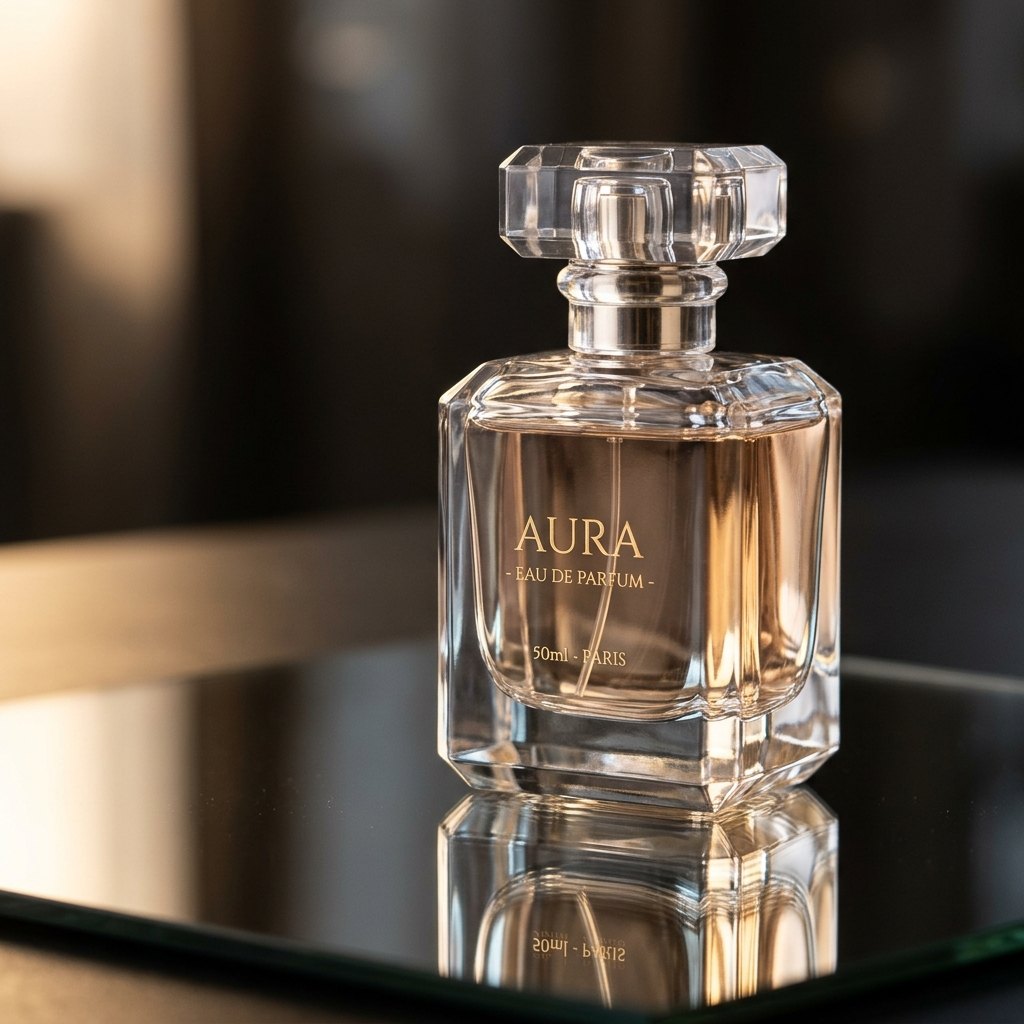
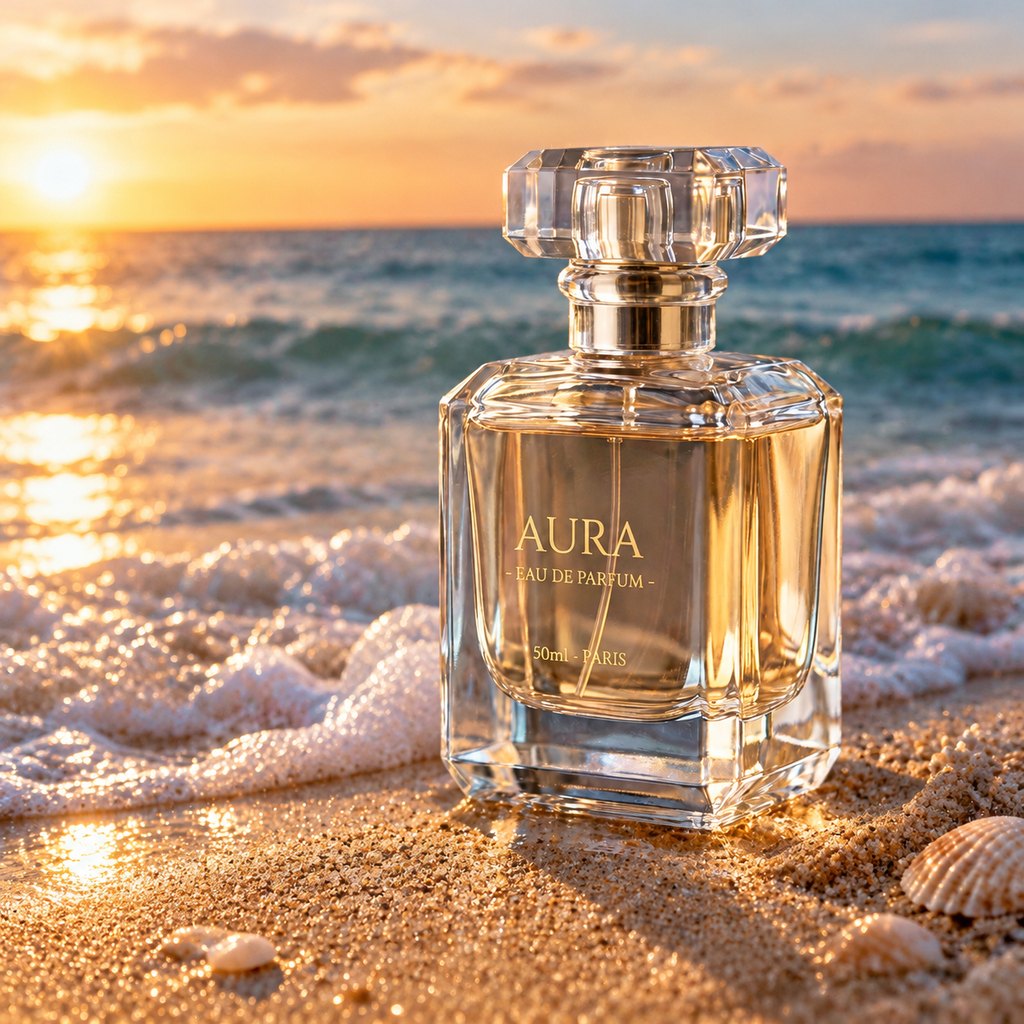
Background swap. The dark studio setting became a sunset beach, while the bottle and its label text were carried over. The glass is re-rendered by the model, so compare small details such as reflections with your original before using the result.
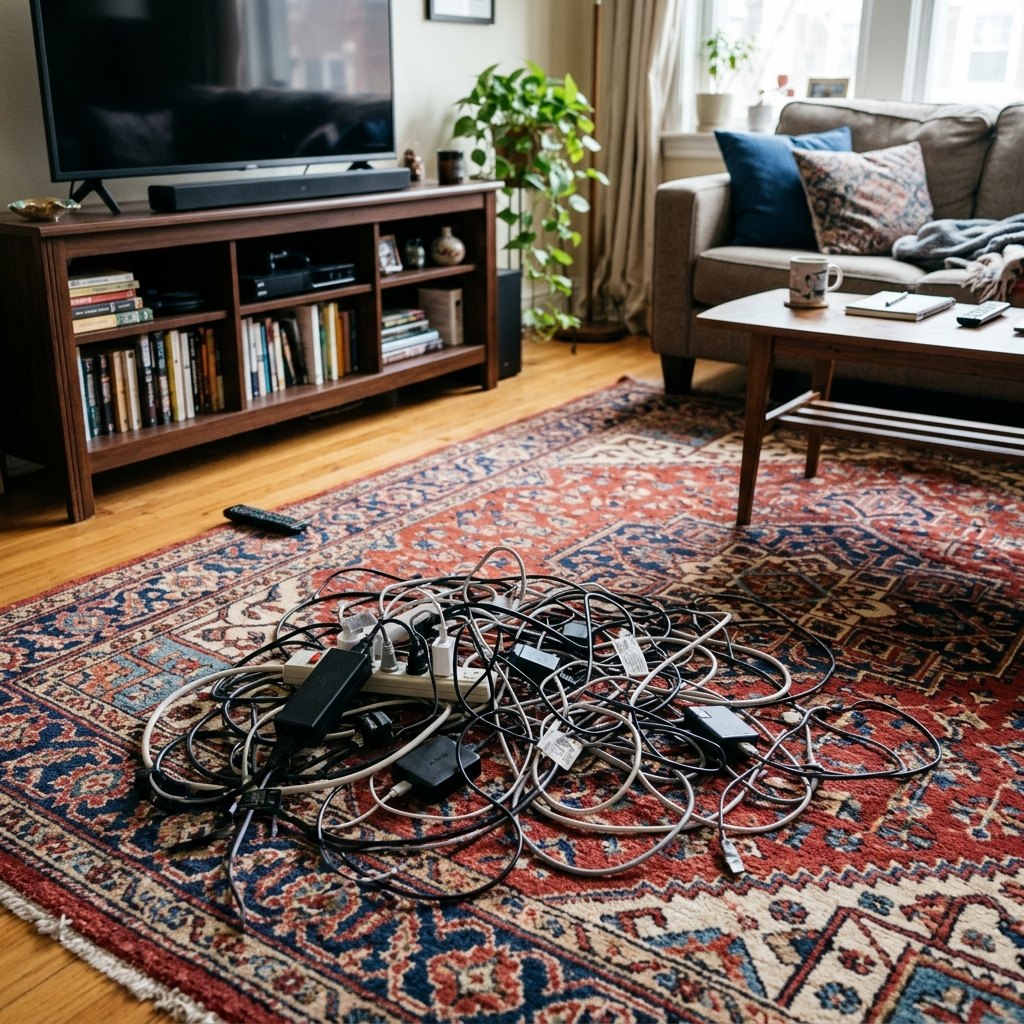
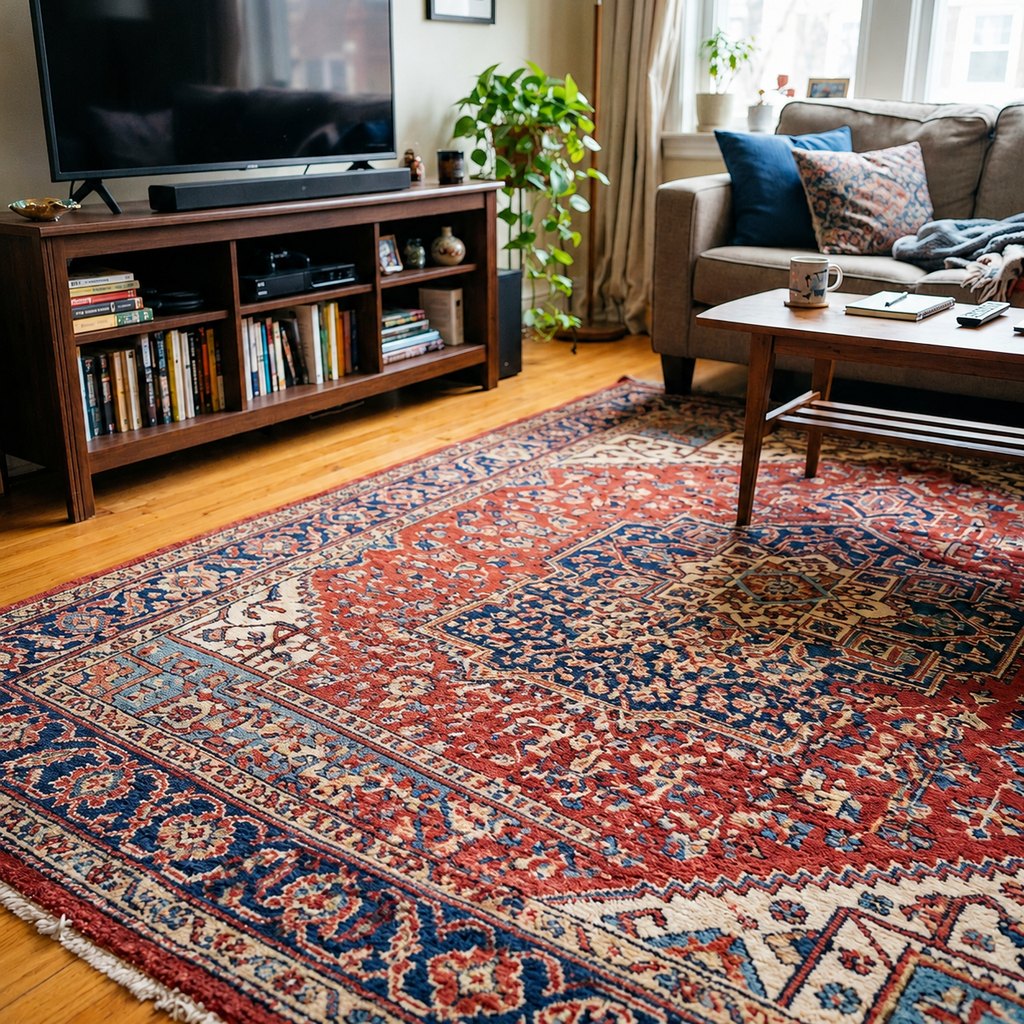
Removing clutter. A pile of cables was painted over with the brush and replaced with the rug pattern. The room around it is unchanged. The new rug pattern is a plausible reconstruction, not the original, which is normal for any AI fill.
How to edit a photo with AI
- Upload your photoClick the upload area, drop a JPG, PNG or WebP (up to 20 MB) or paste an image. Large photos are scaled to a 2048 px long side in your browser so edits stay fast.
- Describe the change and, optionally, paint the areaType what should change, for example "Change the background to a beach at sunset". If you only want one region to change, paint over it with the brush. Pixels outside the brush come from your original.
- Run, compare and downloadPress Apply edit, then use the before/after slider to check the result. Download as PNG or JPG, undo a step, or keep editing; every edit builds on the previous one.
What you can ask the editor to do
Change the background
Move a subject to a new setting: a beach, an office, a studio sweep, a seasonal scene.
Remove or replace objects
Paint over a lamp, a cable, a stranger in the frame and describe what should be there instead, or nothing.
Fix lighting
Warm up a cold photo, soften a hard shadow, brighten a dark corner. For shadows there is a dedicated shadow remover.
Change colors and materials
Recolor a jacket, turn a wooden table into marble, switch a car from red to blue.
Add something
Place a plant on a shelf, a cup on a desk or a frame on a wall; paint where it should go.
Restyle the whole image
Turn a photo into a watercolor or a poster look. Without a brush the whole image is re-rendered.
The brush: edit only what you paint
The brush is what makes the editor safe to use on photos you care about. When you paint an area, Pixmint sends the model your photo together with a mask of that area, and then composites the result back onto your original with a softly feathered edge. Everything outside the painted area is your original pixels, so faces, text and backgrounds you did not touch stay as they were (the feathered edge is blended).
If you do not paint anything, the model sees the whole photo and may re-render all of it. That is the right mode for global changes such as a new style or a new background, but small details like fine text or skin texture can change. When a detail matters, paint around the part you want changed.
- Paint slightly beyond the edge of what you want to change; the feathered edge blends the seam.
- Use the eraser to correct the brush and Clear to start over.
- Include the shadow or reflection of an object when you replace the object itself.
Which model should edit your photo?
Guests edit with the free Seedream 5.0 Flash. Signed-in users can choose any live model from the dropdown; the default is GPT Image 2.5, which we use as the all-round editing model. OpenAI models receive a real transparency mask. Nano Banana and Seedream models receive your photo with the area painted in red plus an instruction to change only that area, and the same compositing step then protects the rest.
In our own tests on photos of documents, Nano Banana 2 kept printed text faithful where GPT models sometimes invented words, which is why the shadow remover uses it for the document scene. For people photos, the preset instructions tell the model to keep identity, skin texture and expression unchanged, and you should still review faces yourself.
Tips for edits that work the first time
- Be specific. "Replace the background with a plain light-grey wall" beats "make it nicer".
- One change per run. Chain edits instead of asking for five things at once; each step is saved so you can undo it.
- Say what must stay. Add "keep the label text unchanged" or "keep her expression" when it matters.
- Start from a sharp, large photo. The model cannot recover detail that is not there.
- Check hands, text and reflections in the result; these are where generative edits most often slip.
Not sure which tool you need?
AI image editor pricing
An edit costs the credits of the model you choose: 5 for Seedream 5.0 Flash, 15 for GPT Image 2.5, 18 for Nano Banana 2, up to 36 for Nano Banana Pro. The button shows the price before you run. Failed edits are refunded.
Guests can edit 5 times a day with the free model; results are up to 1024 px with a small watermark and for personal non-commercial use. Signed-in users get 50 credits at first sign-in and 20 every day. Paid plans are planned but not available yet, so nothing can be bought today (see pricing).
AI image editor FAQ
What is an AI image editor?
It is an editor where you describe a change in words instead of using layers and brushes manually. The AI model changes the photo accordingly, and you can limit the change to a painted area.
Will it change the rest of my photo?
If you paint a mask, pixels outside the brush are taken from your original (the edge is blended). Without a mask the model may re-render the whole image, so small details can change.
Can I edit photos of people?
Only photos you have the right to use, and never to deceive or harm someone. Sexual content, edits involving minors and non-consensual edits of real people are blocked. Read the content policy.
How big can my photo be?
Up to 20 MB. It is scaled to a 2048 px long side before upload. Free outputs are limited to 1024 px with a small watermark.
Is there an undo?
Yes. Each edit is a step you can undo, and the before/after slider compares the latest step with the one before it.
Do I need an account?
No. Guests can use the editor with the free model. Sign in for the other models and 50 free credits.
Edit a photo now
Upload a photo at the top of this page, or use the sample photo to see how it works.
Open the editor