 Pixmint
Text to Image AI
Describe a picture in words and get it back as an image. Write a prompt, choose a model and compare up to four results at once. Free to try.
- Free to try
- No sign-up needed
- 7 image models
- Nano Banana · GPT Image · Seedream
Text to image examples with the exact prompts
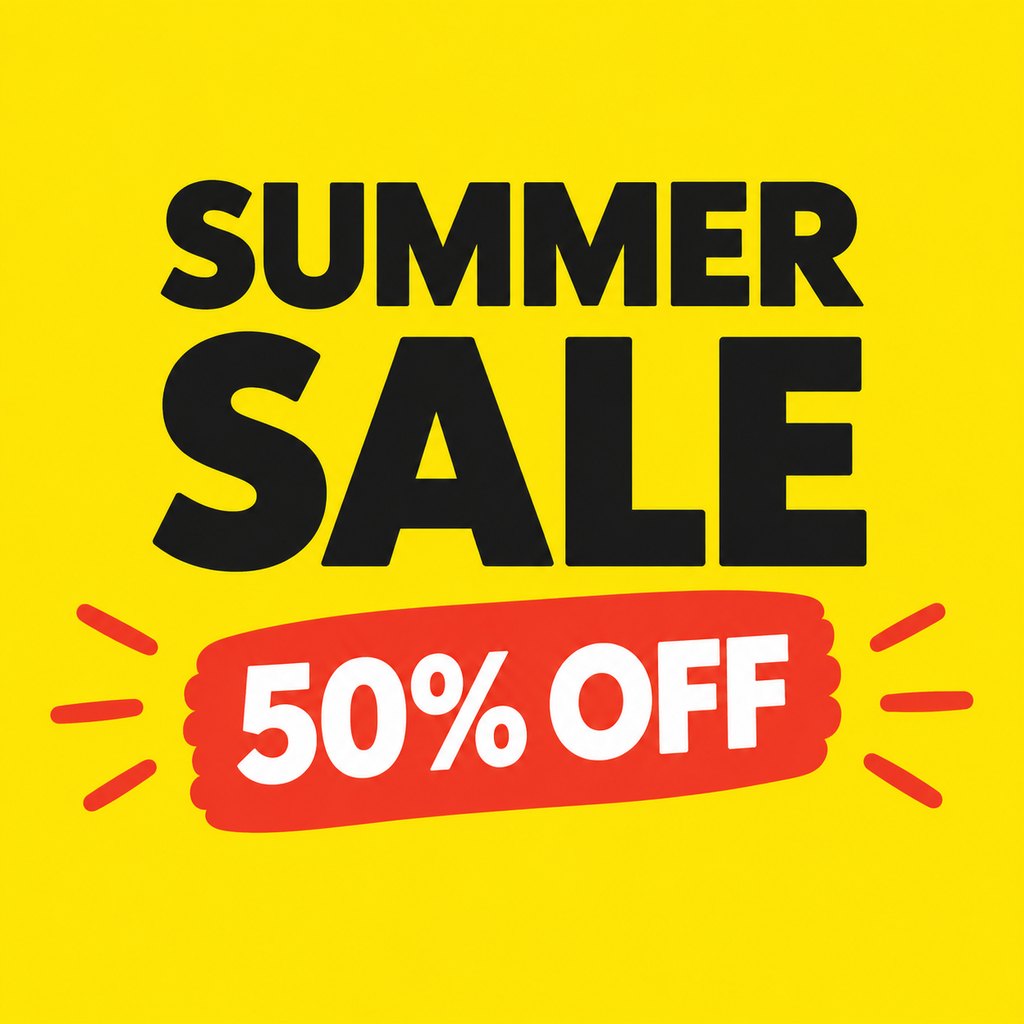
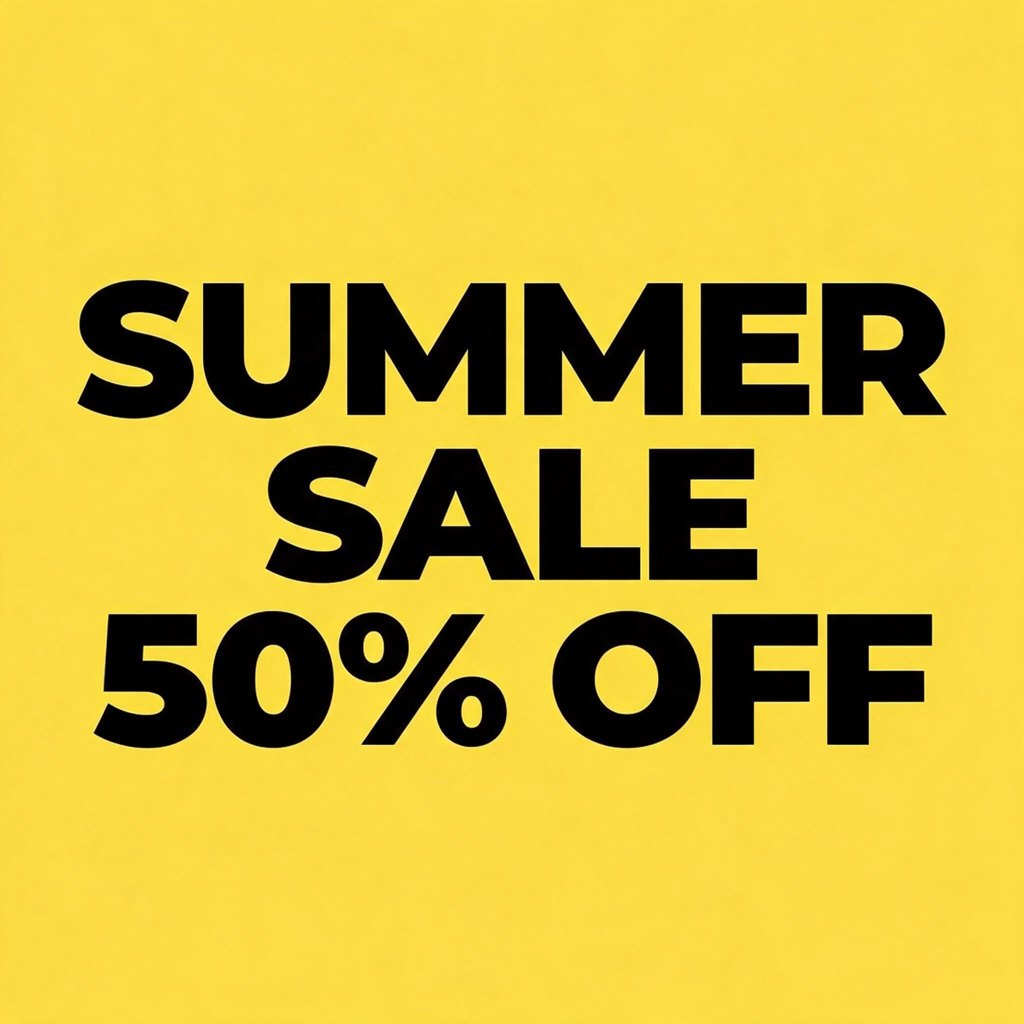
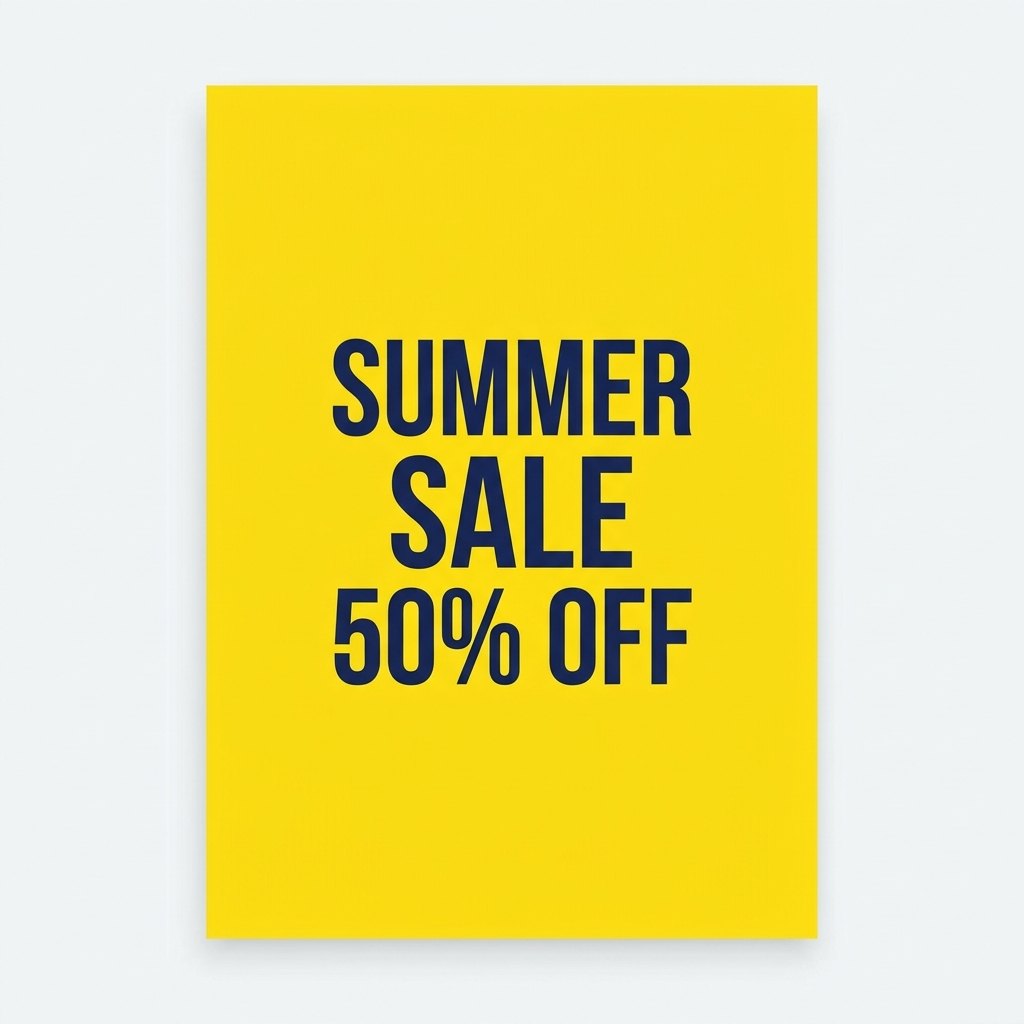
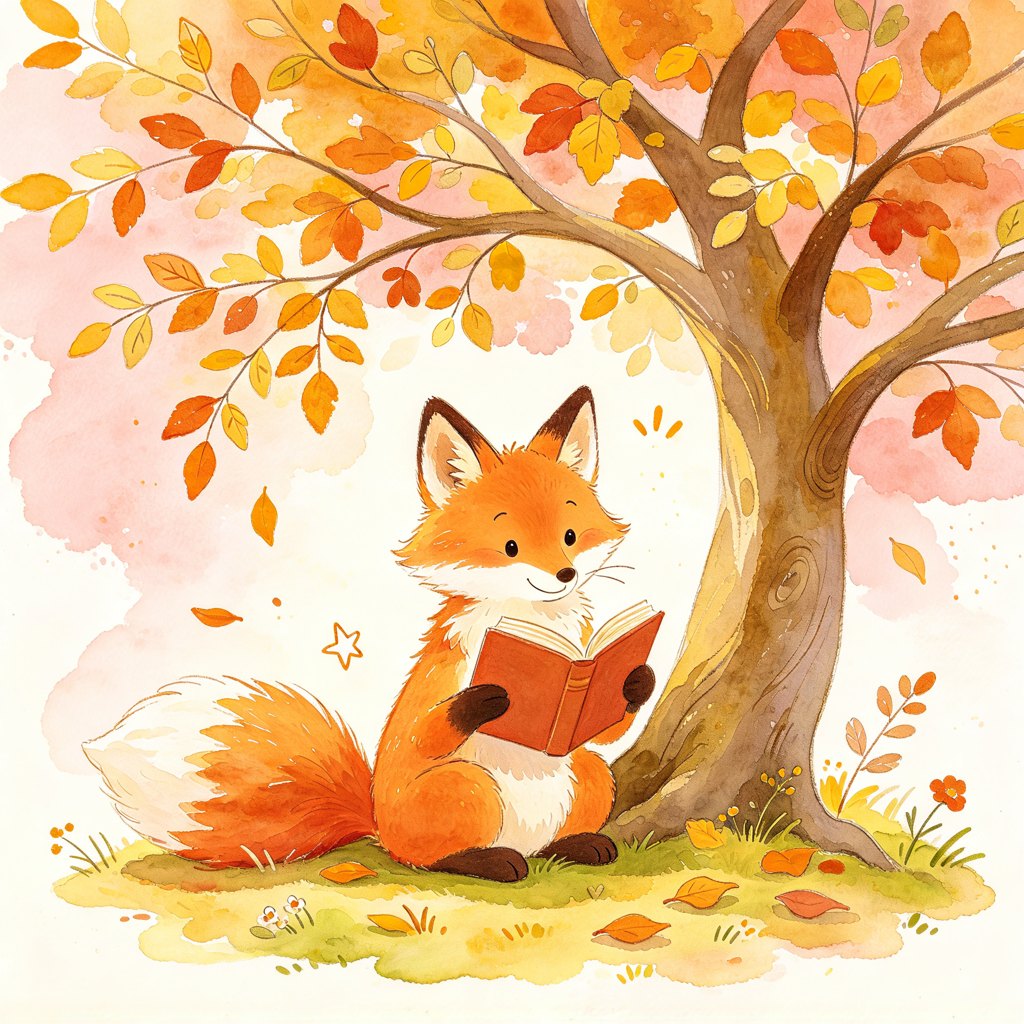
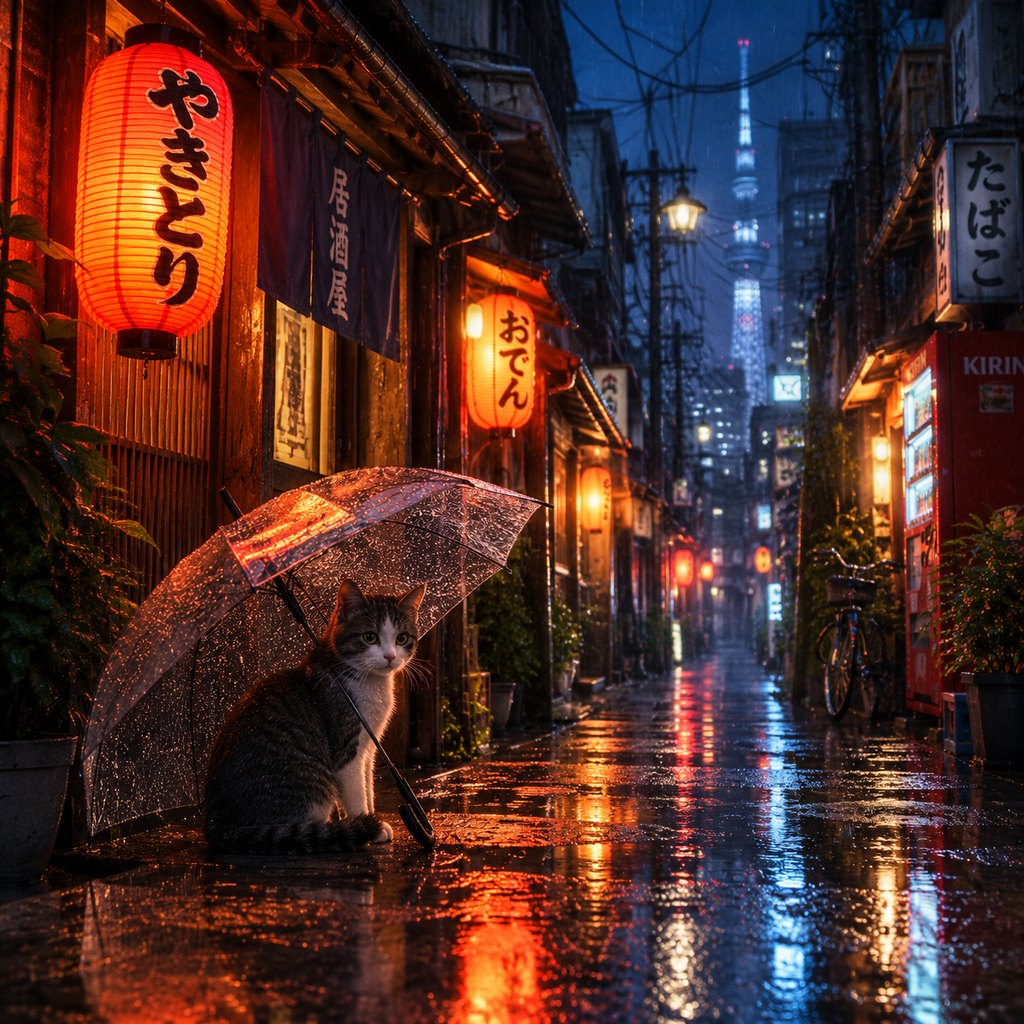
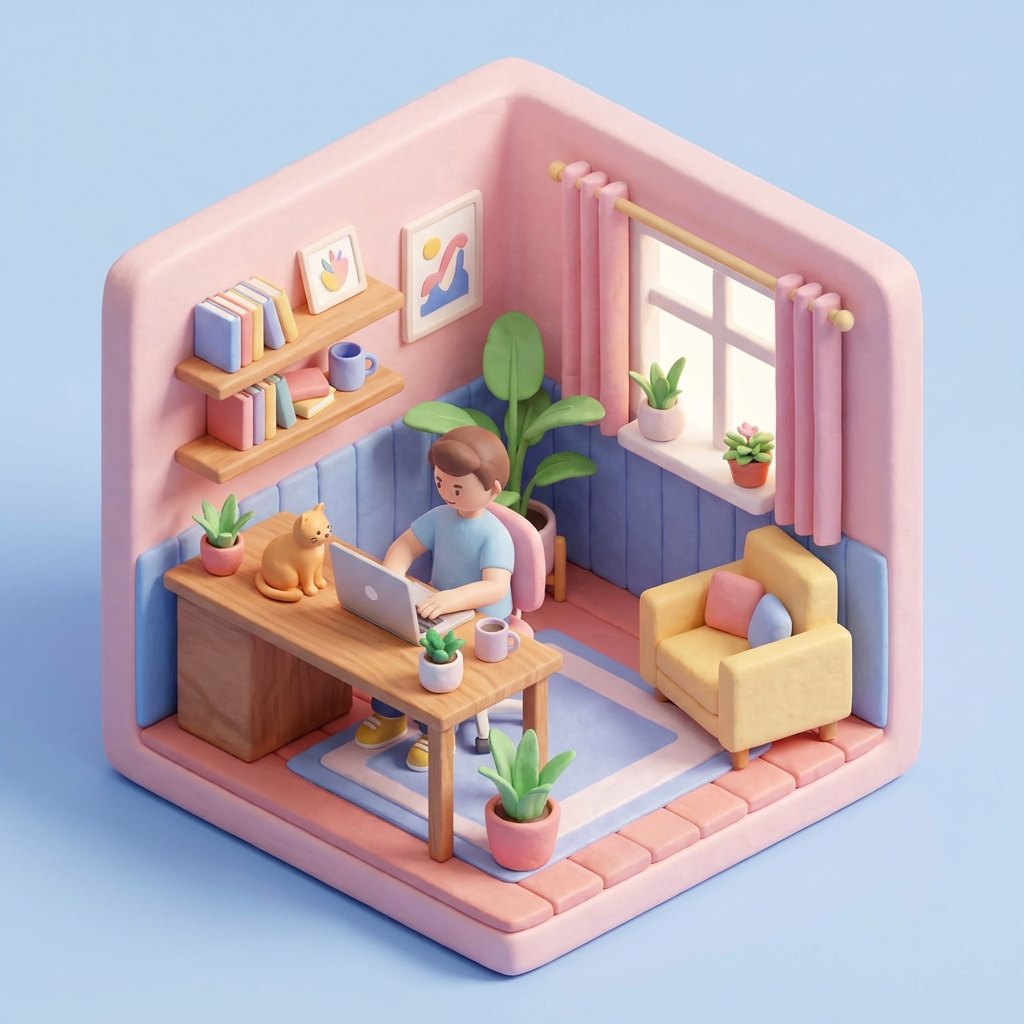
The fastest way to learn text to image is to read prompts next to what they produce. These images come from the same prompt run through different models, so you can also see how much the model matters.
How text to image works, in plain words
A text to image model has learned from a very large number of pictures paired with descriptions. When you write a prompt, it starts from noise and gradually shapes an image that matches the description. It does not search the web or copy an existing picture; it produces a new image each time, which is why the same prompt gives different results on every run.
That has two practical consequences. First, specific words steer the result and vague words leave the model to guess. Second, you rarely get the perfect image on the first try, so generating several candidates and picking one is the normal workflow, not a failure.
Anatomy of a good prompt
Most strong prompts contain the same five parts. You do not need all of them every time, but when a result disappoints, check which part is missing.
- Subject: who or what is in the image ("a ceramic coffee mug", "a woman in her 30s").
- Setting: where it is ("on a pure white background", "by a cafe window").
- Light and mood: "soft afternoon light", "studio lighting", "in the rain at night".
- Style or camera: "watercolor", "clay render", "50mm photo", "cinematic".
- Format: the aspect ratio and, for posters, the exact text in quotation marks.
Here is the same idea written badly and well. A weak prompt: "a nice picture of a mug". A stronger one: "E-commerce product photo of a white ceramic coffee mug on a pure white background, soft shadow, studio lighting". The second names the subject, the background, the shadow and the lighting, so there is far less for the model to guess.
Writing text inside images
Posters, banners and thumbnails often need a headline inside the image. Put the exact words in quotation marks and keep them short, like the "SUMMER SALE 50% OFF" prompt above. Short phrases in a large, bold typeface come out most reliably; long sentences and small print are where models still make spelling mistakes.
Always read the text in the result before you use it. If one word is wrong, regenerate or fix that detail with the AI image editor. In the examples above, every model spelled the headline correctly on our run, but each one chose a very different layout and added different decoration, which tells you how much creative freedom a short prompt leaves.
A workflow that saves credits
- Draft with Seedream 5.0 Flash, the free model (5 credits per image when you pay, free for guests within the daily limit). Generate four images and see which direction works.
- Tighten the prompt using what you saw. Add the details the first round got wrong.
- Run the final prompt on a stronger model such as GPT Image 2.5, Nano Banana 2 or Seedream 5.0 Pro.
- Fix small problems with the AI image editor instead of regenerating from scratch.
Choosing aspect ratio and number of images
Pixmint offers five shapes. Use 1:1 for avatars, icons and square feed posts, 4:3 and 3:4 for classic photo shapes, 16:9 for banners and video thumbnails, and 9:16 for stories and phone wallpapers. The model composes the picture for the shape you pick, so choosing 16:9 gives a better wide image than cropping a square one afterwards.
You can generate one to four images per run. Four images cost four times as much, but when you are exploring they usually find a good direction faster than four separate attempts.
Pricing
Text to image is charged per image, and the price depends only on the model. Seedream 5.0 Flash costs 5 credits, GPT Image 2.5 costs 15 and Nano Banana Pro costs 36.
One credit is worth about $0.01 at the planned list price. The signup bonus of 50 credits and the 20 daily credits are enough to try several of the paid models, and the photo tools cost 15 credits per run.
| Model | Maker | Credits per image | List price per image |
|---|---|---|---|
| Seedream 5.0 Flash (free tier) | ByteDance | 5 | $0.05 |
| Seedream 4.0 | ByteDance | 8 | $0.08 |
| Seedream 5.0 Pro | ByteDance | 12 | $0.12 |
| GPT Image 2 | OpenAI | 15 | $0.15 |
| GPT Image 2.5 | OpenAI | 15 | $0.15 |
| Nano Banana 2 | 18 | $0.18 | |
| Nano Banana Pro | 36 | $0.36 |
Planned paid plans (not available yet): 500 credits for $4.90, 1,100 credits for $9.90, 2,400 credits for $19.90, or a monthly plan of 1,200 credits for $9.90. Paid plans are planned but not available yet, so nothing can be bought today (see pricing).
Guests (no account) get 5 free Seedream 5.0 Flash images and 3 photo-tool uses per day. Signed-in users get 50 credits on their first sign-in plus 20 credits every day. Free outputs are up to 1024 px with a small watermark and are for personal non-commercial use.
Text to image FAQ
What is text to image AI?
It is software that creates a new image from a written description. You type a prompt, the model generates the picture, and you can repeat or refine as often as you like.
Why does the same prompt give different images?
The models start from random noise each time, so every run produces a new variation. Add specific details to narrow the range, or keep generating until one fits.
Can it write exact words in the image?
Short headlines in quotation marks usually work, but always check the spelling. Long paragraphs of small text are still unreliable on any model.
Which model is best for text to image?
It depends on the style you want. The free Seedream 5.0 Flash is good for drafts; GPT Image, Nano Banana and Seedream 5.0 Pro are the stronger options. Compare them on the models page.
Do I need to sign in?
No. Guests can generate 5 images per day with Seedream 5.0 Flash. Sign in for 50 credits and 20 more per day to use the other models.
Try it now
Edit the example prompt at the top of the page or write your own, then press Generate.
Go to the text to image tool