 Pixmint
Shadow Remover
Remove shadows from a photo. Pick the kind of photo (product, document or portrait) and the matching model and instructions are used. The model is instructed to keep the person and the text unchanged, but results can still change details, so compare with your original.
Shadow remover examples
Three common problems, three scenes. Each pair shows the original on the left and the result from the matching scene on the right.
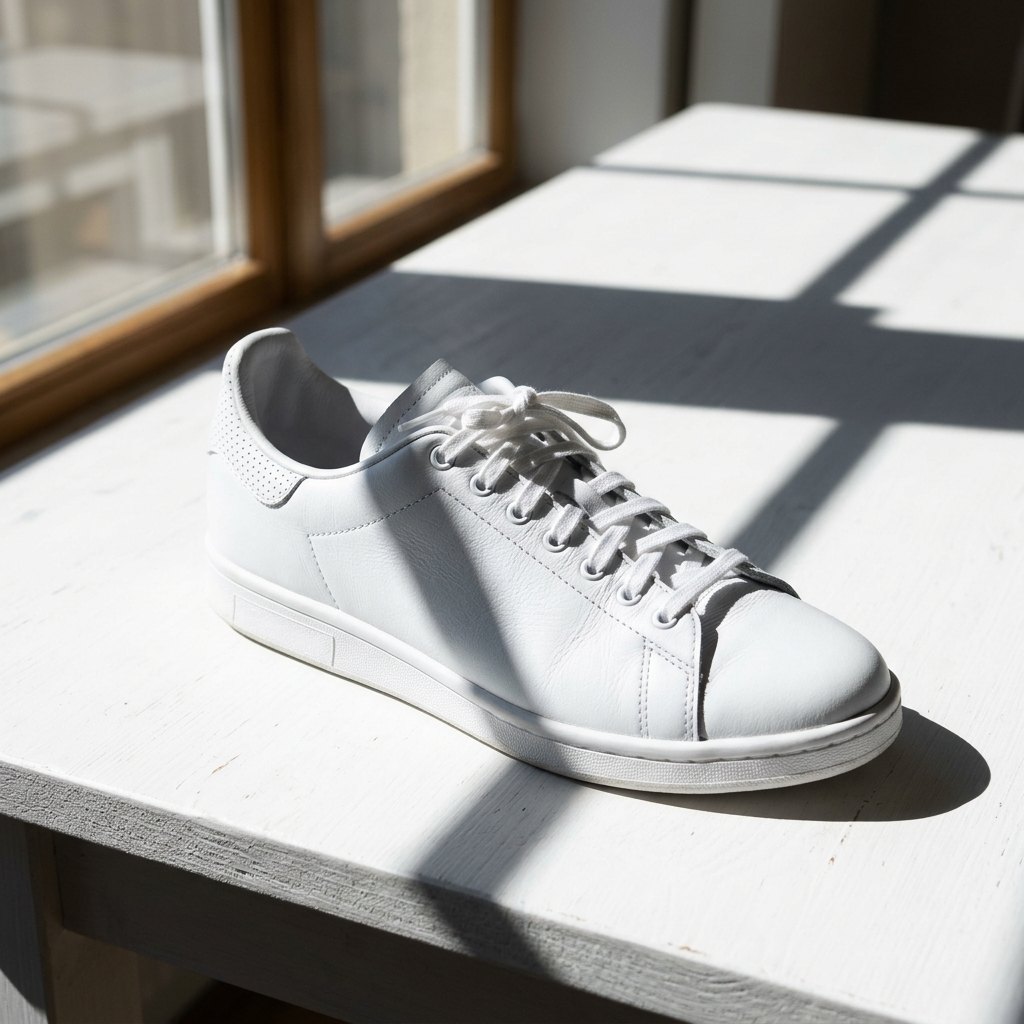
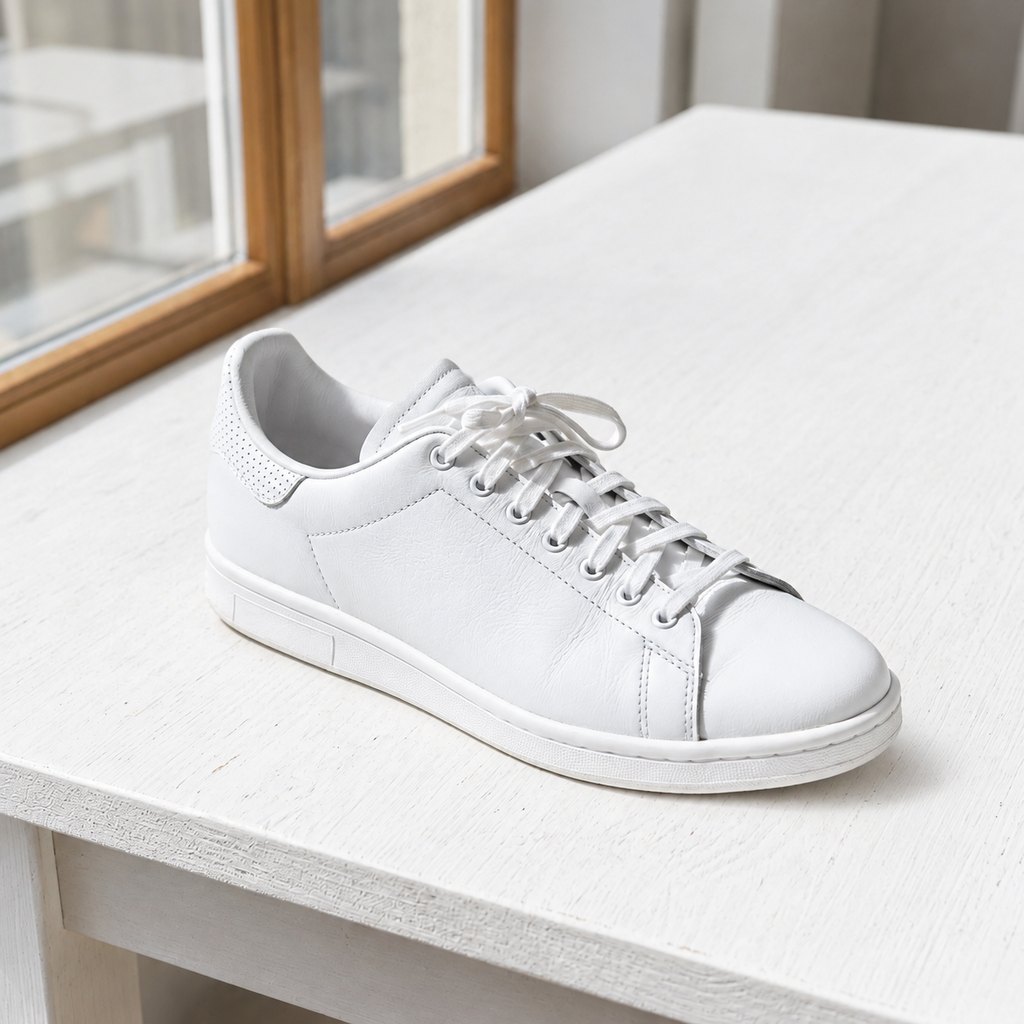
Product scene. Hard blind shadows across a white sneaker and table are gone; the lacing, sole and material look the same. See removing shadows from product photos.
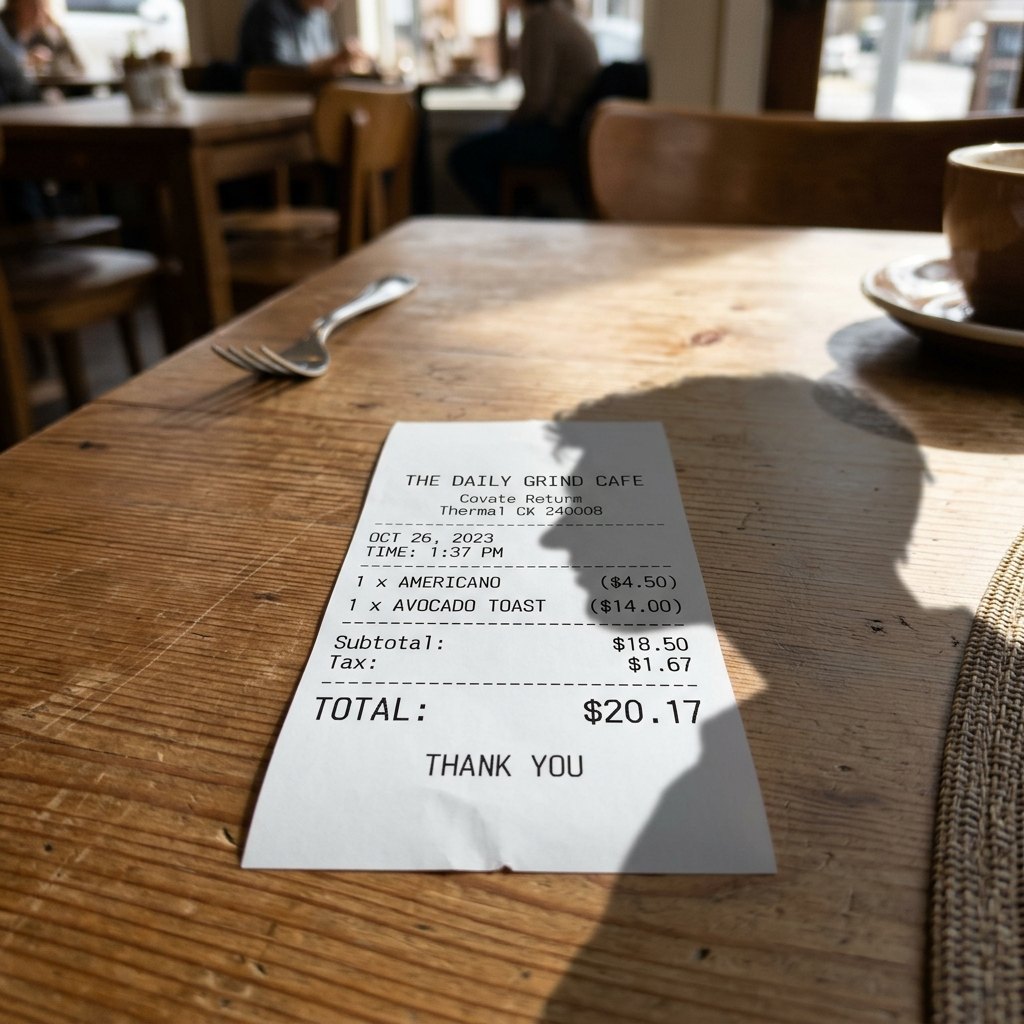
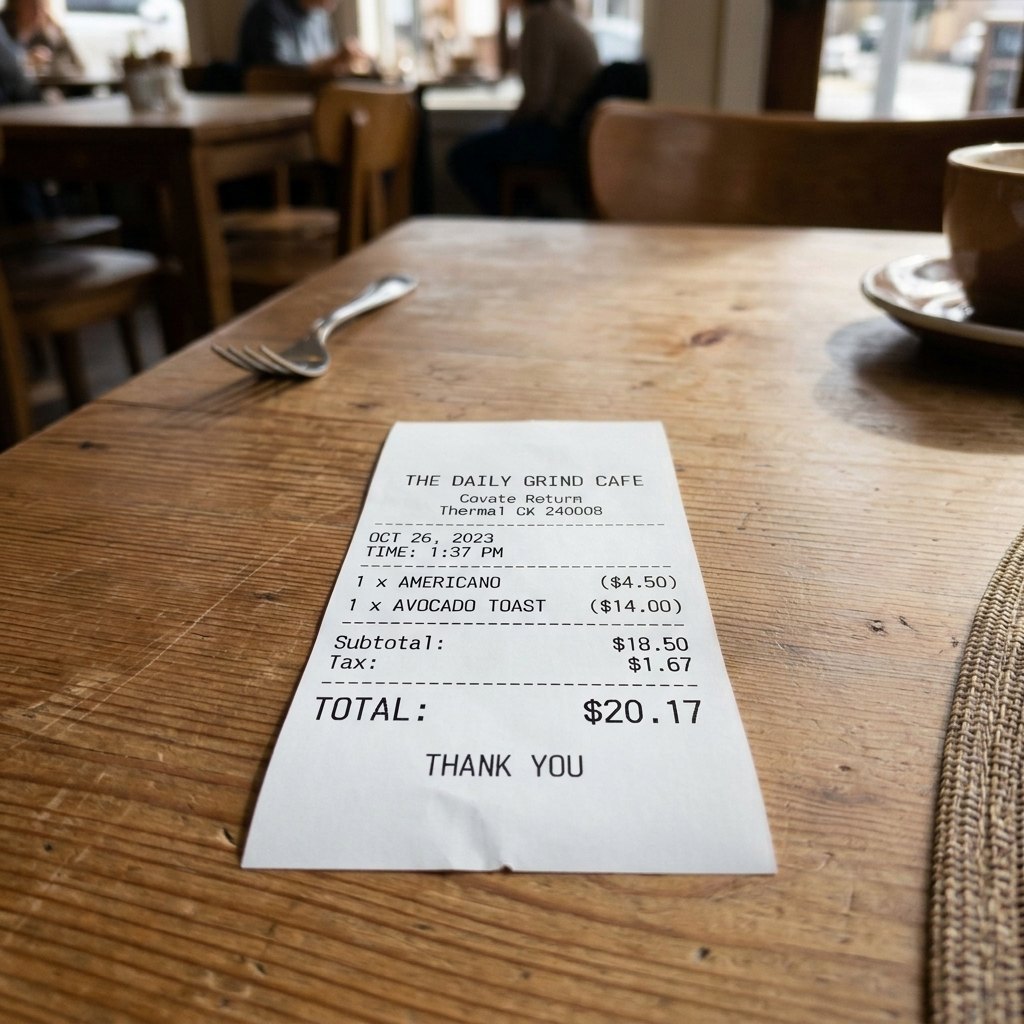
Document scene. A head-shaped shadow across a receipt is removed and the printed lines and amounts are unchanged. See removing shadows from documents.
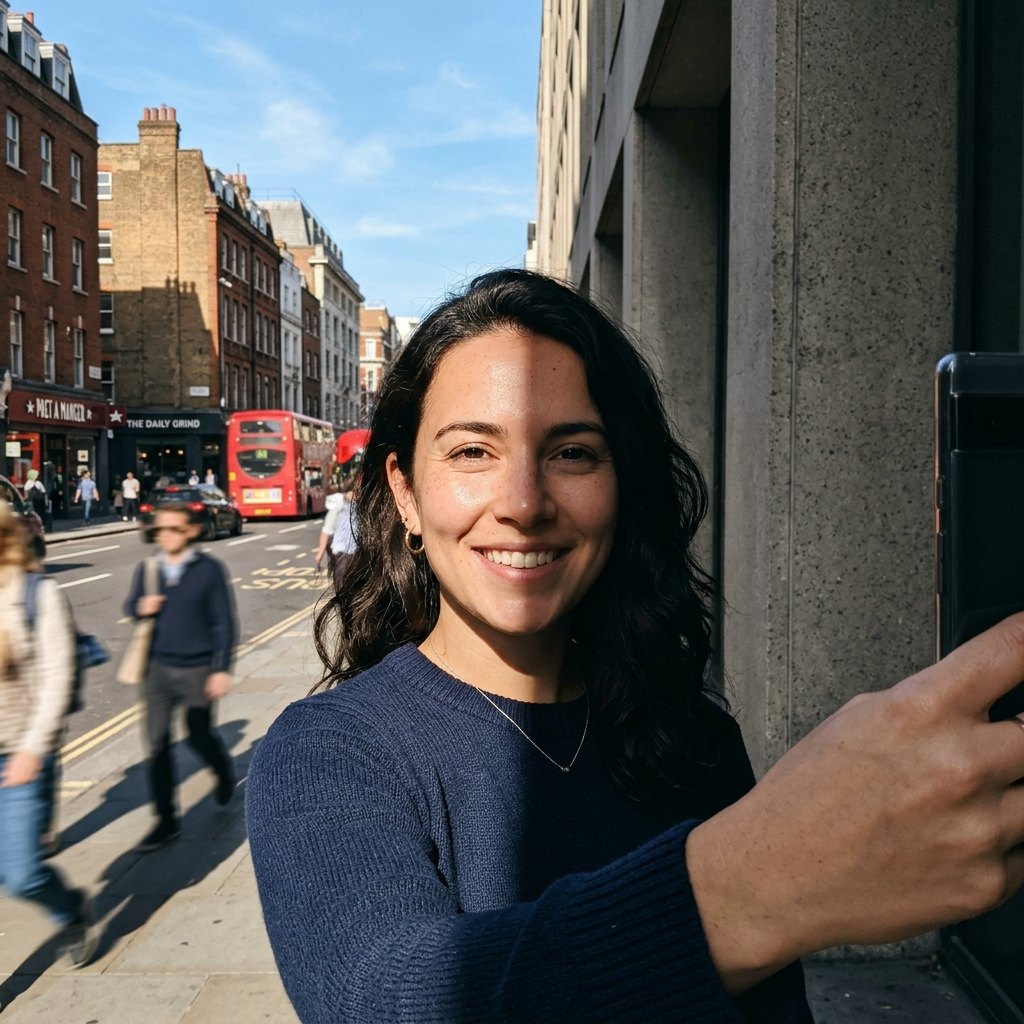
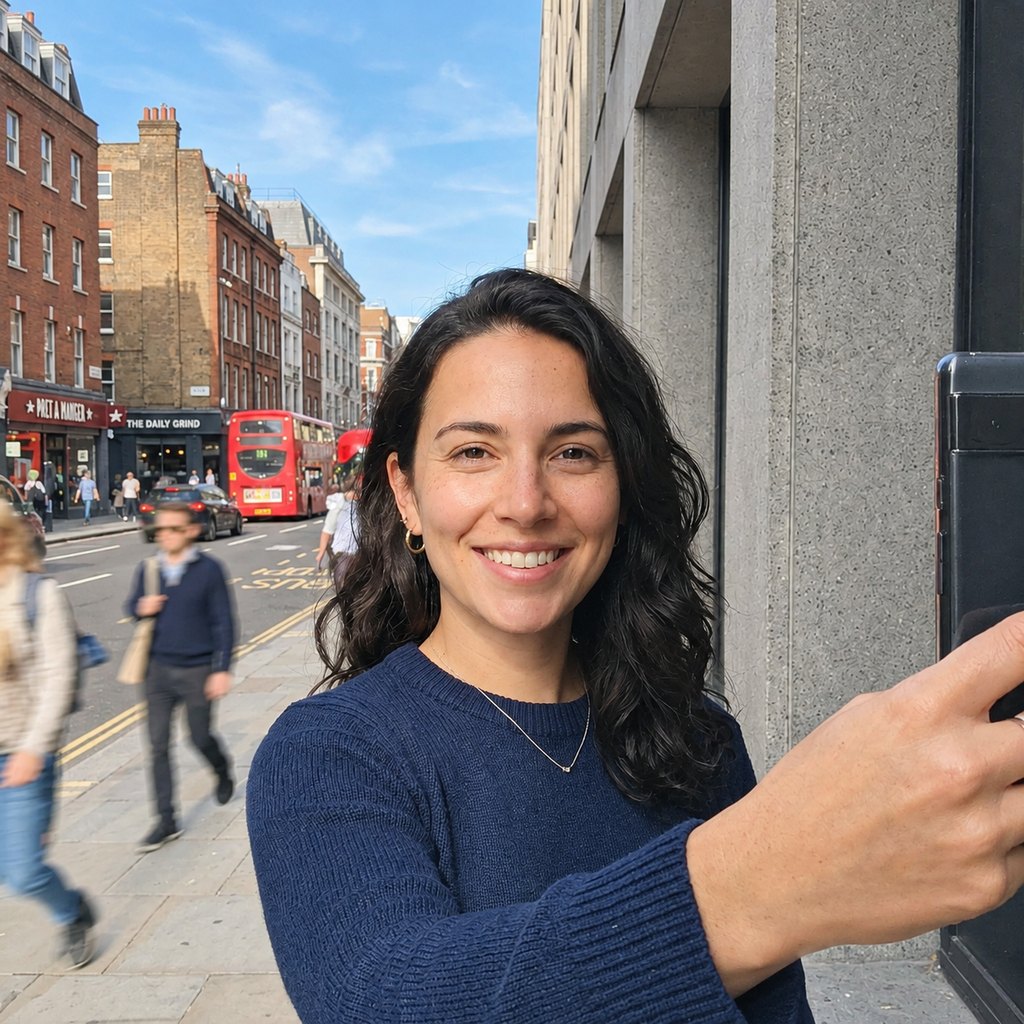
Portrait scene. The shadow on the face and neck is evened out; in this sample the person, expression and street behind look unchanged. See removing shadows from faces.
How to remove shadows from a photo
- Choose the kind of photoSelect Auto, Product, Document or Portrait above the image. The scene decides the instruction and, for signed-in users, which model runs.
- Upload your photoDrop a JPG, PNG or WebP (up to 20 MB), paste one, or try the sample photo. Optionally paint over any shadow you want to be sure is handled; the painted area is then the only part that changes.
- Run and comparePress Run. How long it takes depends on the model and the load. Use the before/after slider, then download a PNG or JPG. A run costs 15 credits and failed runs are refunded.
The four scenes
| Scene | Best for | Model for signed-in users | What the instruction stresses |
|---|---|---|---|
| Auto | Mixed or unclear photos | GPT Image 2.5 | Remove cast shadows, keep every object, face and text. |
| Product | Packshots and listing photos | GPT Image 2.5 | Clean, even lighting; keep shape, material, color and logos. |
| Document | Receipts, forms, notes, printed pages | Nano Banana 2 | Keep every character and number; do not rewrite or add text. |
| Portrait | Faces hit by hat, hand or harsh-light shadows | GPT Image 2.5 | Same person, same skin texture; no beautifying. |
Signed-in users get the model named in the table. Guests run on the free Seedream 5.0 Flash model to keep the free tier affordable, which can be less exact on difficult photos, except the document scene, which uses Nano Banana 2 for everyone. Documents are routed to a model that keeps text faithful because in our own tests some models invented or altered characters under heavy shadows.
What the instruction says
Shadow removal is done by an image model that follows a written instruction, not by a levels or curves filter. That is why it can rebuild detail inside a dark shadow, and also why the wording matters. These are the preset instructions Pixmint sends for each scene:
- Auto: Remove all cast shadows from this photo and relight the shadowed areas naturally. Keep every object, person, face, text and texture exactly the same; only remove the shadows.
- Product: This is a product photo. Remove the cast shadows and harsh shadows around and under the product so the lighting looks clean and even, while keeping the product's shape, material, color, labels and logos exactly the same. Keep a natural soft contact shadow only if needed for realism.
- Document: Remove all cast shadows from this photo of a document and relight the shadowed areas so the paper is evenly lit. Keep every character, number, line, table, stamp and signature exactly the same: do not rewrite, fix, add or remove any text.
- Portrait: This is a portrait photo. Remove the unwanted shadows on the face, neck and skin (for example hard shadows from a hat, hand, or harsh light) and even out the lighting naturally. It must remain the exact same person: same face shape, features, skin texture and expression. No beautifying, no smoothing, no makeup.
Every run also carries a rule block that tells the model to keep each person's face, identity, skin texture, expression and hair, to keep all text, numbers and logos, to keep the framing, and never to invent hidden content.
Where shadow removal is most useful
E-commerce and listings
Clean up product photos taken by a window or under a desk lamp. See the product photo guide.
Phone scans of paper
A receipt, a form or a printed page photographed under overhead light. See the document guide.
Portraits and selfies
A hat brim, a hand or a harsh midday light falling on part of a face. See the face guide.
Real estate and interiors
Even out a dark corner or a strong window shadow using the Auto scene.
Social posts and profile pictures
Rescue a good shot spoiled by one ugly shadow.
Mixed photos
Use Auto when a photo has people, objects and text together, and paint over leftovers with the brush.
Getting the best result
- Pick the scene that matches the subject. Using Document for a face or Portrait for a receipt wastes the tuning.
- Use the brush for stubborn spots. If a shadow survives the first run, paint over it and run again; only the painted area changes.
- Start from the original file. Heavy compression, filters and screenshots remove information the model needs.
- Expect a re-rendered image when you do not paint. Without a brush the model returns the whole picture, so compare fine details with the original.
- Do not use it to change what a document says. The tool is for lighting only, and changing a document's content is not allowed; see the content policy.
Limits: very large shadows that cover most of a subject, strongly colored light, and shadows that hide content completely cannot be recovered truthfully. The instruction tells the model never to guess completely hidden content, so you may see a softer shadow rather than an invented detail.
Shadow Remover pricing
Shadow Remover costs 15 credits ($0.15) per run, whichever model the preset uses behind the scenes. A failed run is refunded automatically.
Free ways to use it: guests get 3 tool runs per day without an account; those runs use Seedream 5.0 Flash (except document shadow removal, which uses Nano Banana 2 for everyone), are limited to 1024 px and carry a small watermark. Signed in, your 50 first-sign-in credits cover 3 runs and the 20 daily credits cover one run every day, and your runs use the preset's stronger model.
Planned paid plans (not available yet): 500 credits for $4.90, 1,100 credits for $9.90, 2,400 credits for $19.90, or a monthly plan of 1,200 credits for $9.90. Paid plans are planned but not available yet, so nothing can be bought today (see pricing).
| Credits | List price | |
|---|---|---|
| Shadow Remover, one run | 15 | $0.15 |
| AI image editor, one edit | 15 (GPT Image 2.5) up to 36 (Nano Banana Pro) | depends on the model |
| Generate an image | 5 to 36 | depends on the model |
Shadow remover FAQ
What is a shadow remover?
It is a tool that takes a photo with unwanted shadows and returns the same photo with the shadows removed and the lighting evened out. Pixmint's shadow remover uses an image model with instructions tuned for products, documents and portraits.
Does it change faces or text?
The instructions tell the model to keep faces, skin texture, expressions, text and numbers, and the document scene uses a model chosen to keep text faithful. This is an instruction, not a guarantee: results can still change details, so always compare the result with your original, especially for text.
Is the shadow remover free?
Guests get 3 free runs per day. Signed in, you get 50 credits on first sign-in and 20 daily credits; a run costs 15 credits.
Can I remove only one shadow?
Yes. Paint over the shadow with the brush and only that area is changed. Everything outside the brush comes from your original photo.
Can it remove shadows from a photo of a person?
Yes, use the Portrait scene. It is meant for shadows on the face, neck and skin from hats, hands or harsh light. Only use photos you have the right to use.
What file types and sizes work?
JPG, PNG and WebP up to 20 MB. Large photos are scaled to a 2048 px long side in your browser. Free results are 1024 px with a small watermark.
Remove a shadow now
Pick a scene, upload a photo (or use the sample) and run the shadow remover.
Open the shadow remover