 Pixmint
Image to Image AI
Start from your own pictures. Upload up to four reference images, describe what the new image should be, and generate. Every Pixmint model accepts reference images.
- Free to try
- No sign-up needed
- 7 image models
- Nano Banana · GPT Image · Seedream
What image to image does
Text to image starts from words only. Image to image starts from words and pictures: you give the model one to four reference images and a prompt, and it generates a new image that uses them. The references can supply a subject, a color palette, a style, a composition or all of them together; the prompt tells the model what to do with them.
This is useful because some things are hard to describe. A particular product, a brand's look or the layout of a room is much easier to show than to explain. Reference images give the model the same starting point you have in your head.
How to use reference images
- Add your referencesClick the highlighted upload box or drop JPG, PNG or WebP files (up to 20 MB each, up to four images). They appear as thumbnails and can be removed with the x.
- Say what to do with themBe explicit: "Use image 1 as the product and place it on a marble kitchen counter in morning light" or "Redraw this photo as a watercolor illustration, keep the composition".
- Generate and comparePick a model, choose the aspect ratio and number of images, then press Generate. Any result can be used as a reference for the next round.
An example of the idea in action
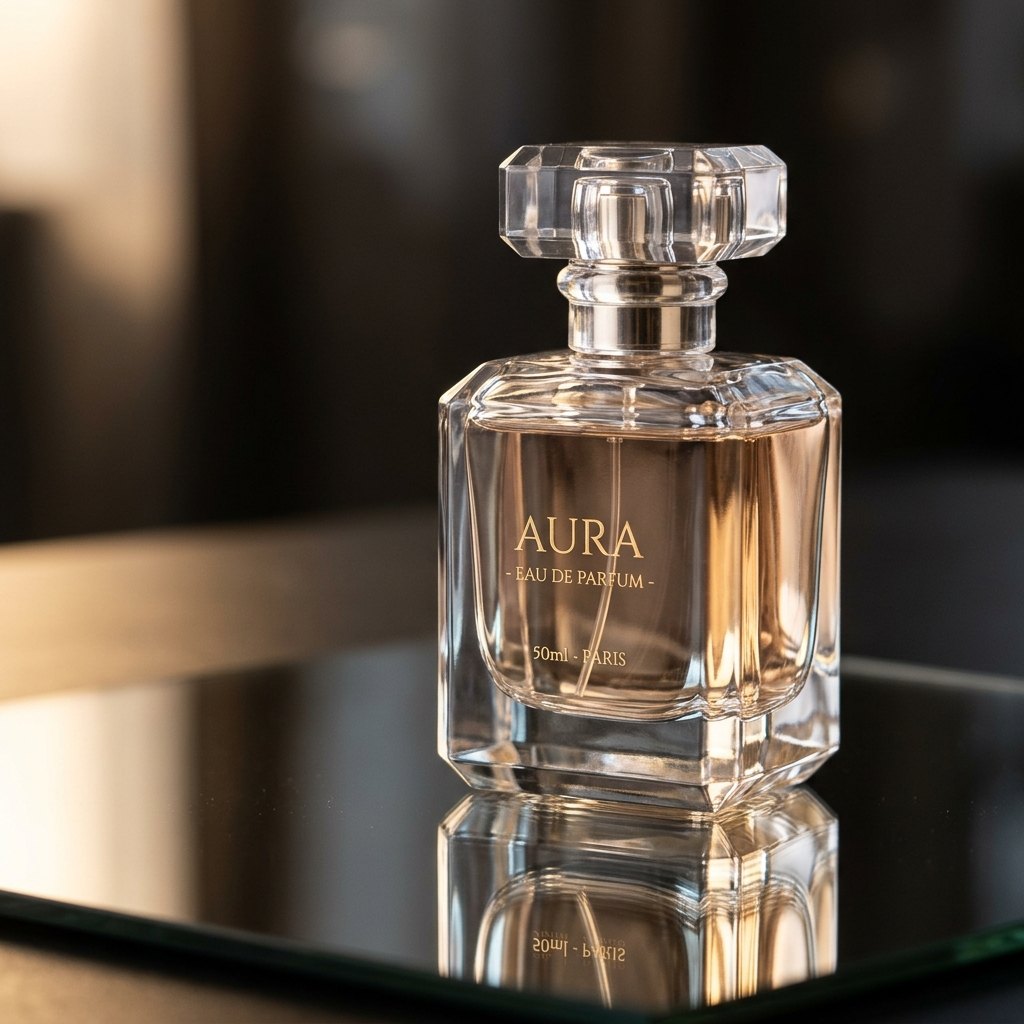
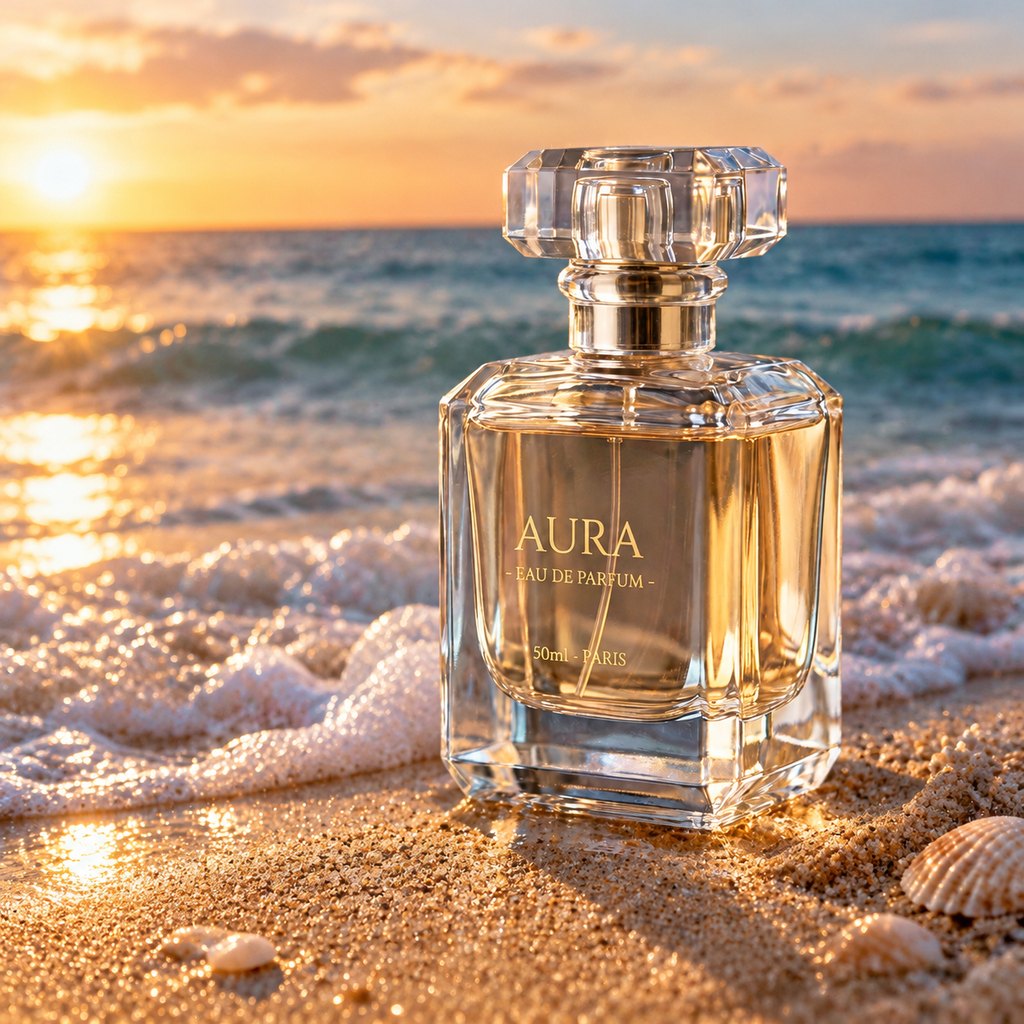
Existing photo plus words gives a new scene. This pair comes from the AI image editor rather than the generator, but the principle is identical: an existing image plus a description of the change. The bottle shape and the label text carry over to the new setting. Fine details can still shift slightly, so always compare the result with your original.
Ideas for image to image
Put a product in a new scene
Upload a clean product photo and describe the setting, season or surface you want it on.
Restyle a photo
Turn a snapshot into a watercolor, clay render, sketch or poster while keeping the composition.
Make variations
Upload a design you like and ask for alternatives in other colors or moods.
Combine references
Use one image for the subject and another for the style, and say which is which in the prompt.
Build on a result
Use "Use as reference" on any generated image to carry its look into the next generation.
Mock up a layout
Upload a rough sketch or screenshot and ask for a polished version with the same arrangement.
Image to image or the AI image editor?
Use image to image when you want a new picture inspired by your references: a new scene, a different style, a variation. The model is free to change everything.
Use the AI image editor when you want your photo back with one specific change, and everything else kept as it was. The editor lets you paint over the area that may change, and the pixels outside your brush are kept from the original. For removing shadows, objects or backgrounds there are also one-click tools: shadow remover, object remover and background remover.
Tips for better results
- Use clear, well-lit references. Blurry or tiny photos give the model less to work with.
- Refer to images by number ("image 1", "image 2") when you upload more than one.
- Describe what must stay the same as well as what changes: "keep the label text and the bottle shape".
- Expect interpretation, not copying. The result is a new image. Faces, logos and small text may drift, so check them before you publish.
- Only upload what you may use. Do not upload photos of other people to impersonate or deceive them; see the content policy.
Pricing
Reference images do not add to the price: an image-to-image run costs the same per image as text to image on the same model. Seedream 5.0 Flash is 5 credits, GPT Image 2.5 is 15 and Nano Banana 2 is 18.
One credit is worth about $0.01 at the planned list price. The signup bonus of 50 credits and the 20 daily credits are enough to try several of the paid models, and the photo tools cost 15 credits per run.
| Model | Maker | Credits per image | List price per image |
|---|---|---|---|
| Seedream 5.0 Flash (free tier) | ByteDance | 5 | $0.05 |
| Seedream 4.0 | ByteDance | 8 | $0.08 |
| Seedream 5.0 Pro | ByteDance | 12 | $0.12 |
| GPT Image 2 | OpenAI | 15 | $0.15 |
| GPT Image 2.5 | OpenAI | 15 | $0.15 |
| Nano Banana 2 | 18 | $0.18 | |
| Nano Banana Pro | 36 | $0.36 |
Planned paid plans (not available yet): 500 credits for $4.90, 1,100 credits for $9.90, 2,400 credits for $19.90, or a monthly plan of 1,200 credits for $9.90. Paid plans are planned but not available yet, so nothing can be bought today (see pricing).
Guests (no account) get 5 free Seedream 5.0 Flash images and 3 photo-tool uses per day. Signed-in users get 50 credits on their first sign-in plus 20 credits every day. Free outputs are up to 1024 px with a small watermark and are for personal non-commercial use.
Image to image FAQ
What is image to image AI?
It generates a new image from one or more reference images plus a text prompt. The references guide the subject, style or composition, and the prompt describes what you want.
How many reference images can I add?
Up to four per generation, in JPG, PNG or WebP format and up to 20 MB each. Large images are scaled down in your browser before upload.
Can guests use image to image?
Yes. Guests can add reference images with Seedream 5.0 Flash within the free daily limit of 5 images. Signed-in users can use every model.
Will it keep my product or face exactly the same?
Not guaranteed. Image to image creates a new picture, so details can change. For edits that must keep the rest of a photo unchanged, use the AI image editor with the brush.
Are my uploaded images private?
Your images are stored for a limited time (24 hours for guests, 7 days for free accounts; 30 days is planned for paid accounts) and are sent to the provider behind the model you choose to process your request. We do not use them to train models. Read the privacy policy.
Try image to image
Add a reference image above, write a prompt and press Generate.
Add reference images