 Pixmint
Background Remover: White Background
One click: the background is replaced with flat white. The output is a white background, not a transparent PNG (transparent PNG is not offered yet). The model redraws the subject, so check edges and fine detail against your original. Free to try, no sign-up.
Background remover examples
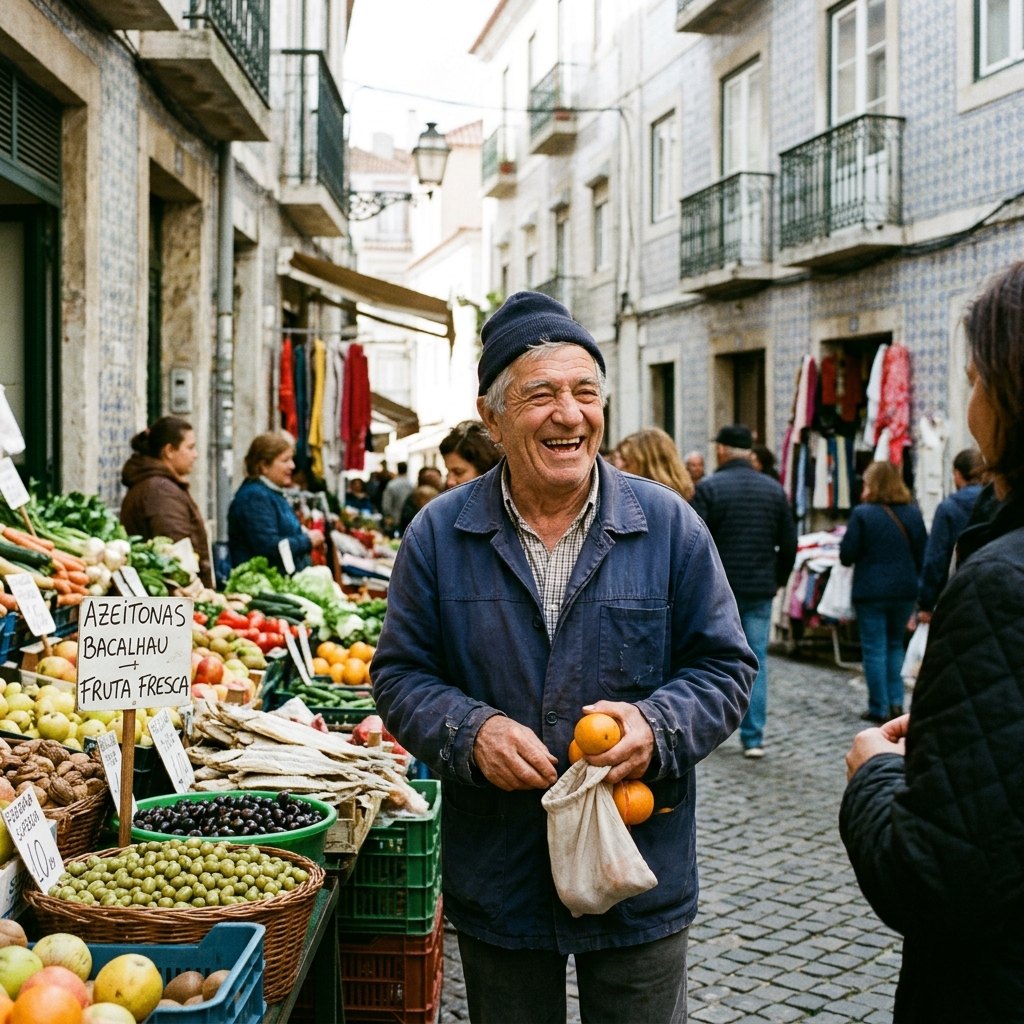
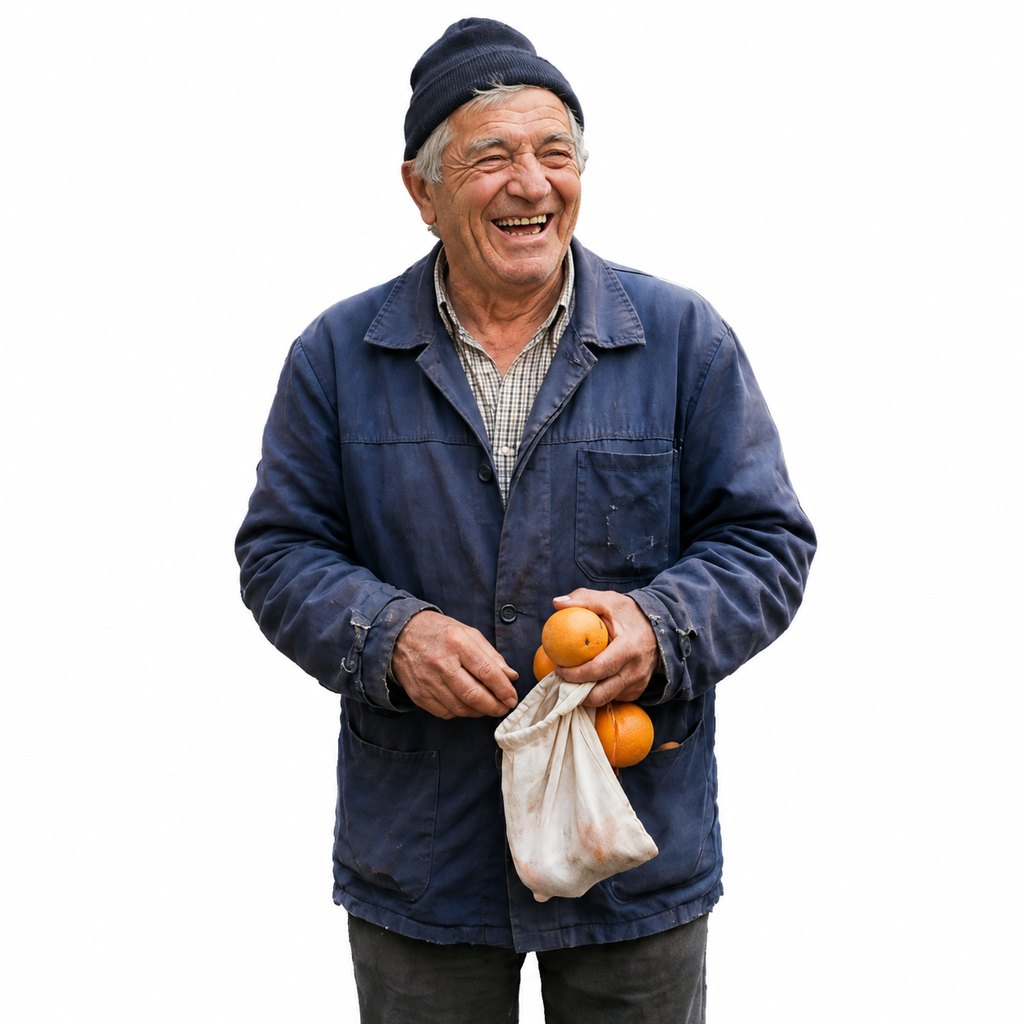
Portrait. A street background replaced with flat white; the beanie and jacket edges look clean here, but check edges on your own photo.

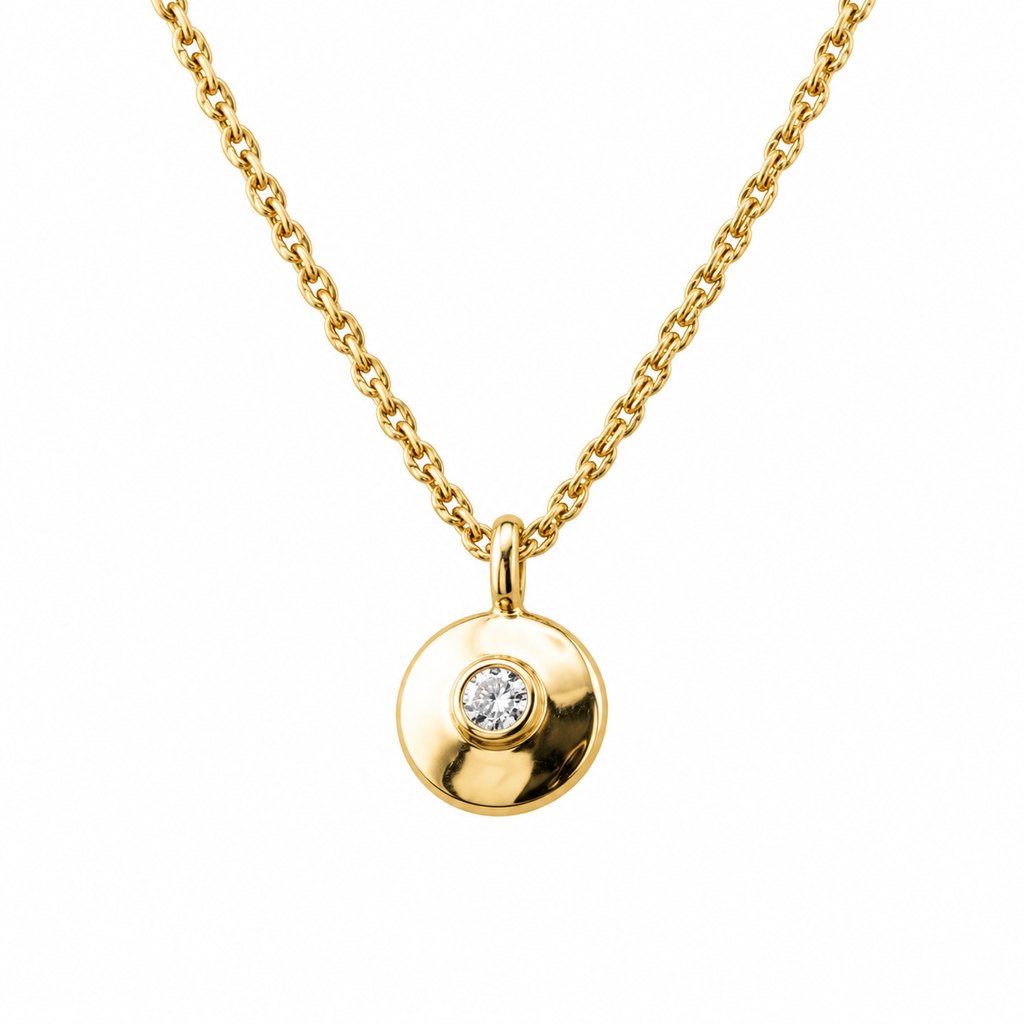
Product. A gold pendant lifted off black velvet onto white. Looking closely, the chain links are rendered a little differently from the original, because the model re-draws the subject rather than cutting it out. For products where exact detail matters, compare against the original before publishing.
What this background remover does, and does not do
Pixmint's background remover replaces the background with flat white: the instruction asks the model for a pure white (#FFFFFF) background, and the exact shade can vary slightly. It does not produce a transparent PNG cutout (transparent PNG is not offered yet), and it does not let you pick other colors. If you need transparency for layering in a design tool, this is not the right tool; if you need a white backdrop for a listing, a profile picture or a document, it can be.
The preset instruction is:
Remove the background of this photo and replace it with a pure, flat white background (#FFFFFF). Keep the main subject exactly as it is, with clean accurate edges (including hair, fur and semi-transparent parts) and no halo.
Like the other photo tools, it runs on an image model and returns a new rendering of the whole image, so the subject is redrawn with the same look rather than being masked out pixel by pixel. That usually handles hair and semi-transparent edges better than a hard cutout, and it can also introduce small differences in fine detail.
How to remove a background
- Upload the photoDrop a JPG, PNG or WebP (up to 20 MB), paste it, or try the sample photo. A clear subject on a different-colored background gives the best result.
- Press RunThere is nothing to paint or configure. One run costs 15 credits; how long it takes depends on the model and the load.
- Check and downloadUse the before/after slider to check the edges and fine detail, then download a PNG or JPG. If the result is not right, undo and run again or fix details with the AI image editor.
When a white background is what you need
Product listings
Many marketplaces and stores want a plain white main image. Check the requirements of your platform; this gives you the white backdrop but not a guarantee of acceptance.
Profile pictures
A clean backdrop for team pages, resumes and social avatars. It is not intended for official ID photos.
Catalogs and line sheets
Make a batch of product photos look consistent.
Presentations and documents
Drop a subject onto a white slide without a visible box around it.
Print layouts
Prepare a photo that will be printed on white stock.
Before more edits
Use a clean white base, then place the subject into a new scene with the AI image editor.
Tips for clean results
- Shoot the subject with some contrast against its surroundings. A white cup on a white table is harder than a white cup on dark wood.
- Use a sharp, well-lit original. Motion blur and noise carry over to the result.
- Check fine edges at full size: hair, fur, glasses, chains, lace and other thin structures.
- Keep the original. Because the subject is re-rendered, always compare with your source photo before using it commercially.
- Need only part of the background gone? Use the object remover or the AI image editor with a brush.
Background Remover pricing
Background Remover costs 15 credits ($0.15) per run, whichever model the preset uses behind the scenes. A failed run is refunded automatically.
Free ways to use it: guests get 3 tool runs per day without an account; those runs use Seedream 5.0 Flash (except document shadow removal, which uses Nano Banana 2 for everyone), are limited to 1024 px and carry a small watermark. Signed in, your 50 first-sign-in credits cover 3 runs and the 20 daily credits cover one run every day, and your runs use the preset's stronger model.
Planned paid plans (not available yet): 500 credits for $4.90, 1,100 credits for $9.90, 2,400 credits for $19.90, or a monthly plan of 1,200 credits for $9.90. Paid plans are planned but not available yet, so nothing can be bought today (see pricing).
| Credits | List price | |
|---|---|---|
| Background Remover, one run | 15 | $0.15 |
| AI image editor, one edit | 15 (GPT Image 2.5) up to 36 (Nano Banana Pro) | depends on the model |
| Generate an image | 5 to 36 | depends on the model |
Background remover FAQ
What does the background remover output?
A copy of your photo with the background replaced by flat white (the instruction asks for #FFFFFF). It does not output a transparent PNG, and transparent PNG is not offered yet.
Can the background remover make a transparent PNG?
No. It outputs a white background only. Transparent PNG cutouts are not offered yet.
Does it keep hair and fine edges?
The instruction asks for clean edges including hair, fur and semi-transparent parts without a halo, and the examples above show clean edges, but the model redraws the subject and can change thin structures. Always check them at full size against your original.
Is it really free?
Guests get 3 free runs per day, signed-in users start with 50 credits and get 20 more daily. One run costs 15 credits. Free results are up to 1024 px with a small watermark.
Can I use the result commercially?
Not today. Results made with free credits carry a watermark. Commercial use is planned to come with paid plans, which are not available yet, so today free outputs are for personal, non-commercial use only. See the terms.
Can I change the background to another color or scene?
Use the AI image editor and describe the new background, for example a light grey wall or a beach.
Which photos work best?
A single clear subject, good light and some contrast with the background. Very busy scenes or subjects that blend into the background are harder.
Remove a background now
Upload a photo and press Run to get a clean white background.
Open the background remover