 Pixmint
AI Photo Editing Tools
One-click photo tools that are instructed to keep the people and the text in a photo unchanged: shadow remover, object remover, background remover (white background) and a free-form AI image editor.
Pick a tool
Each tool is a full working page with a before-and-after example, the exact instruction it uses and tips for good results.
Tools in action
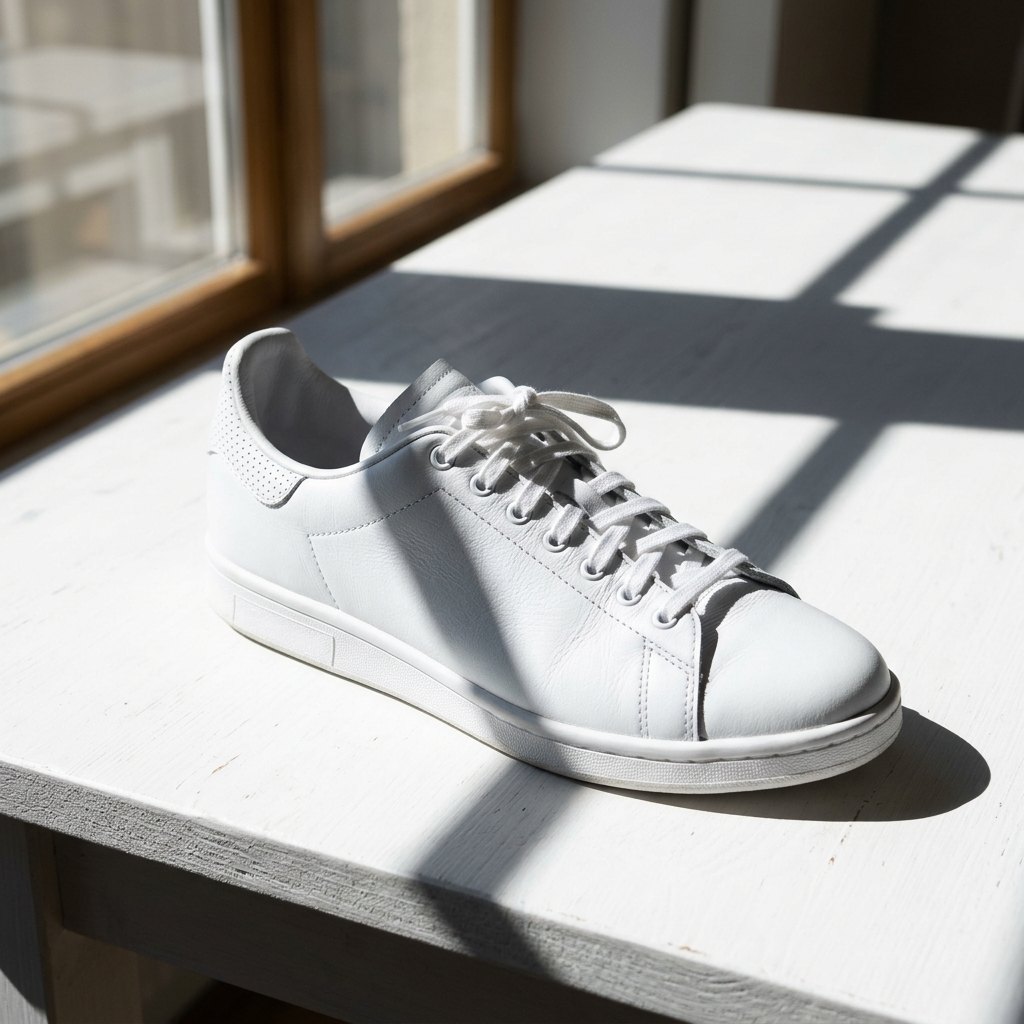
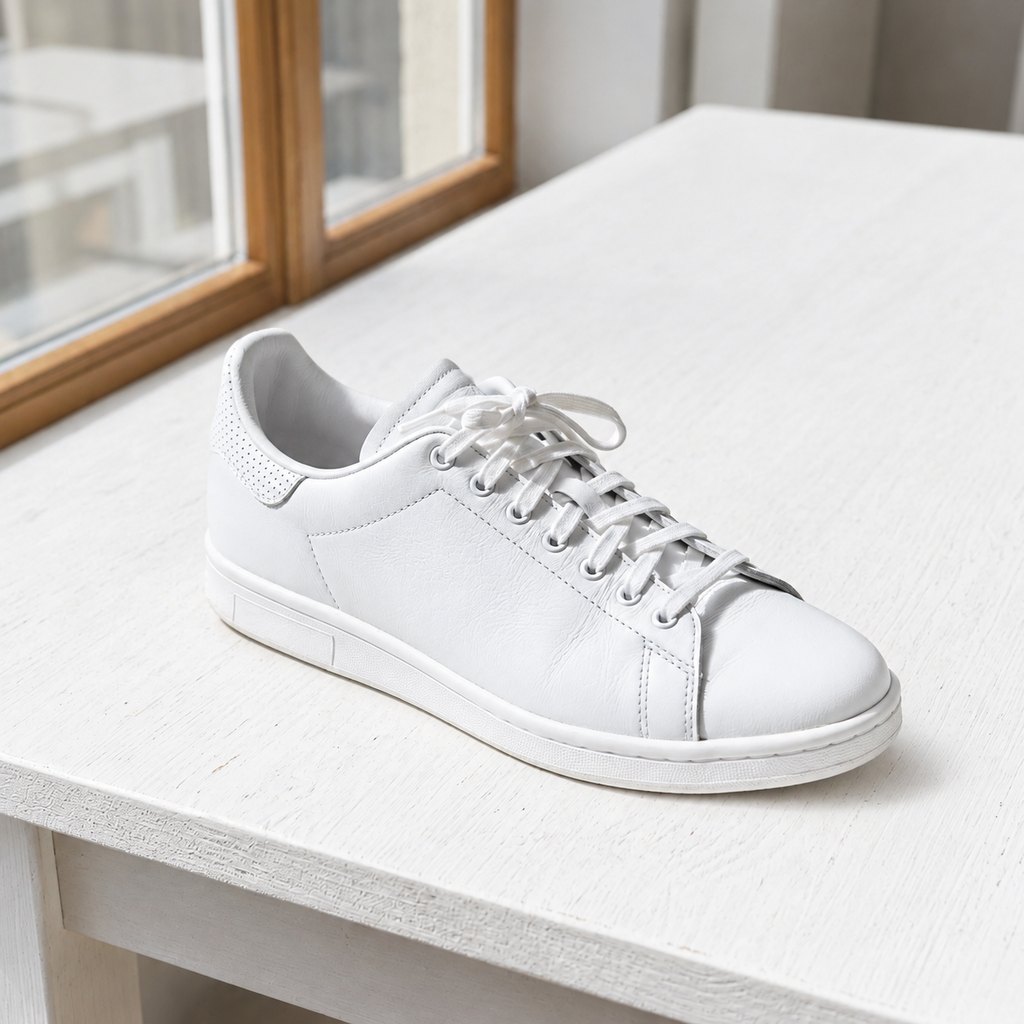
Shadow remover, product scene. More on shadow removal.
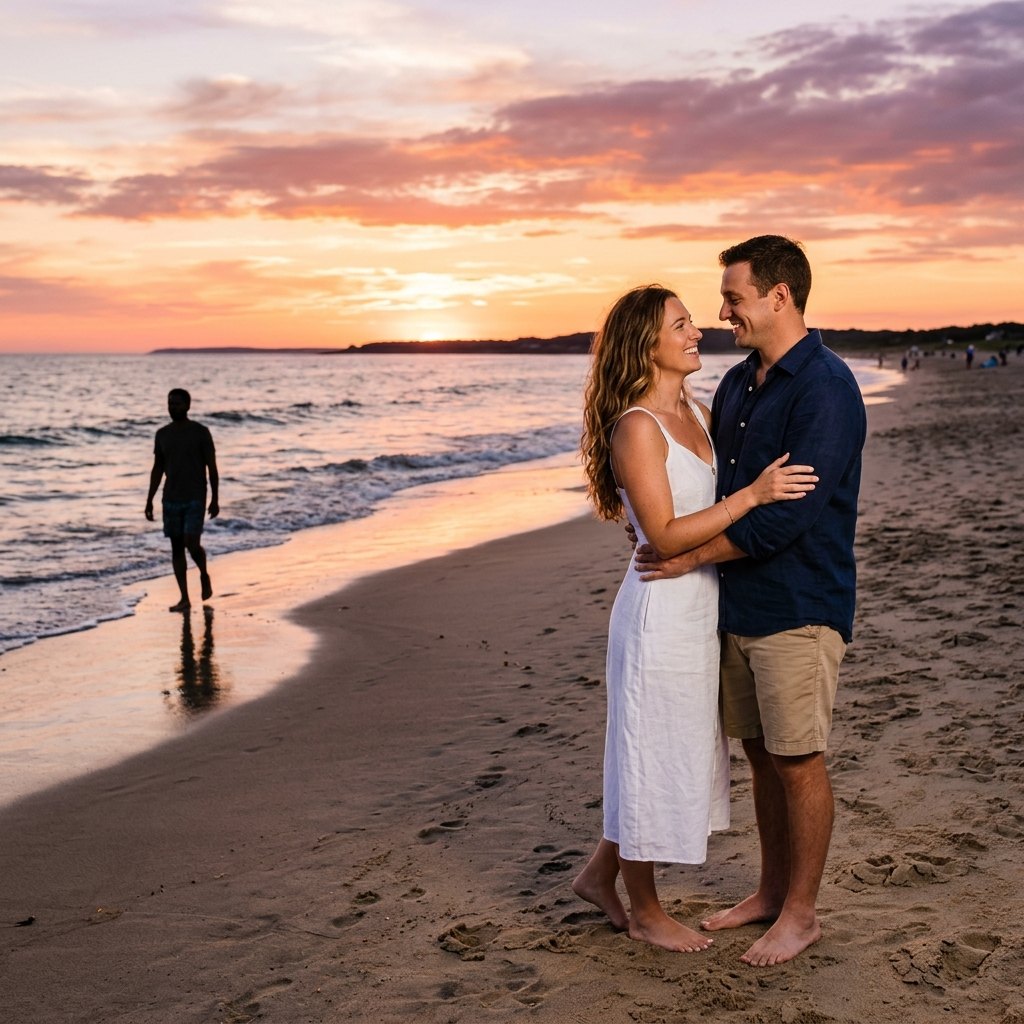
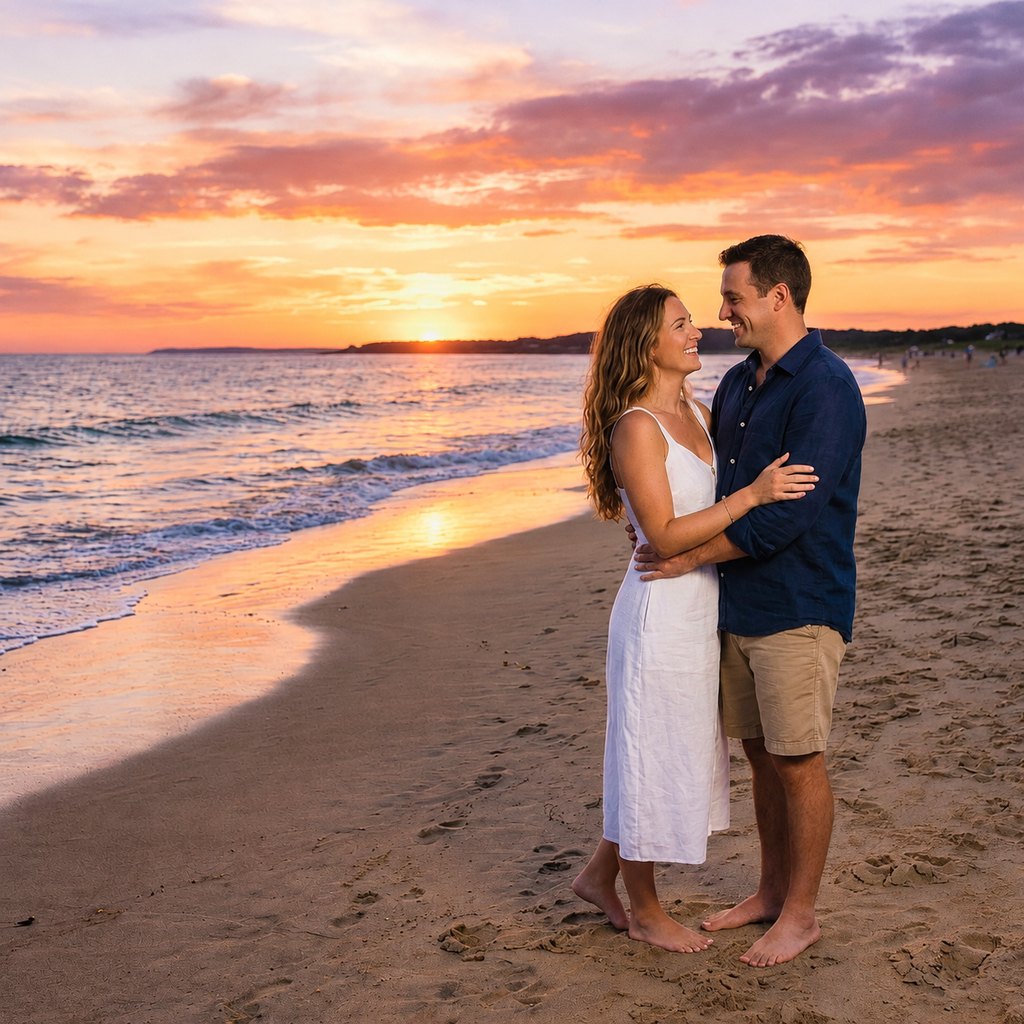
Object remover. More on object removal.
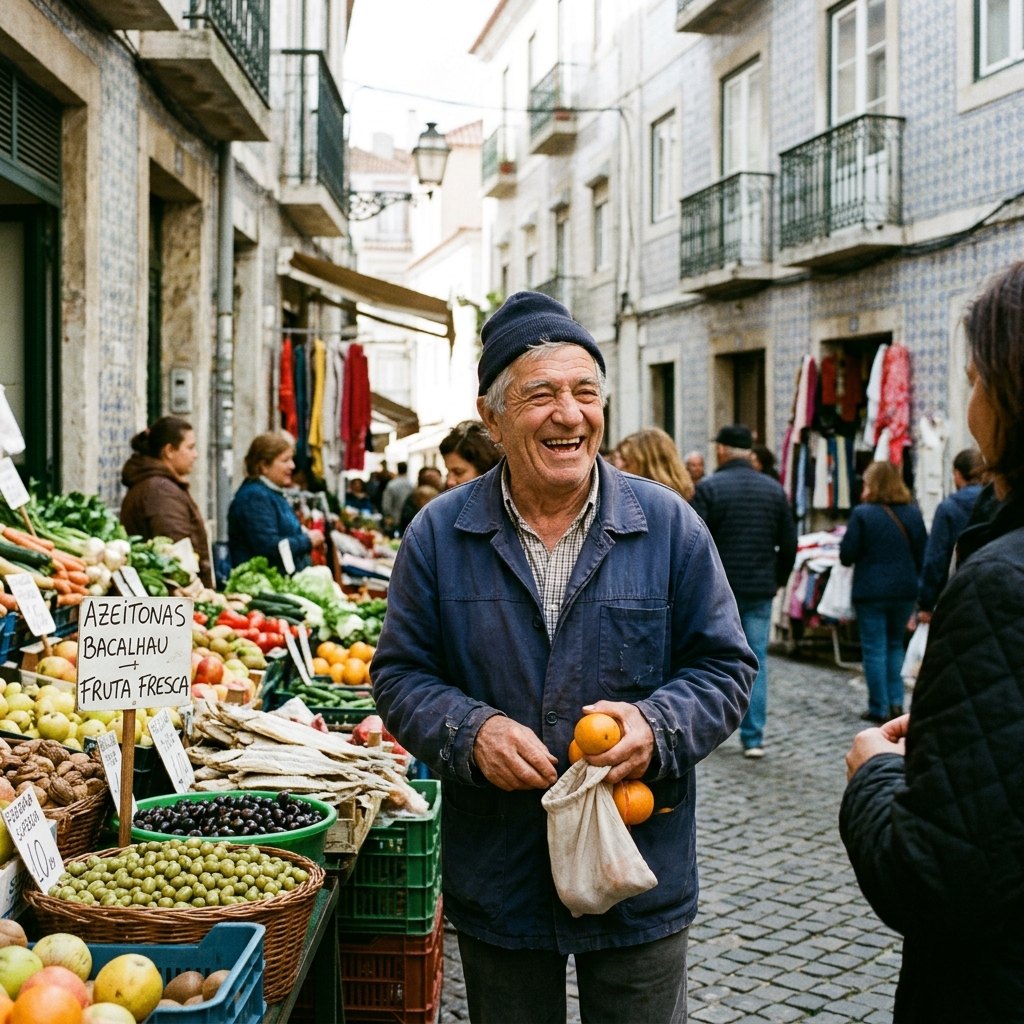
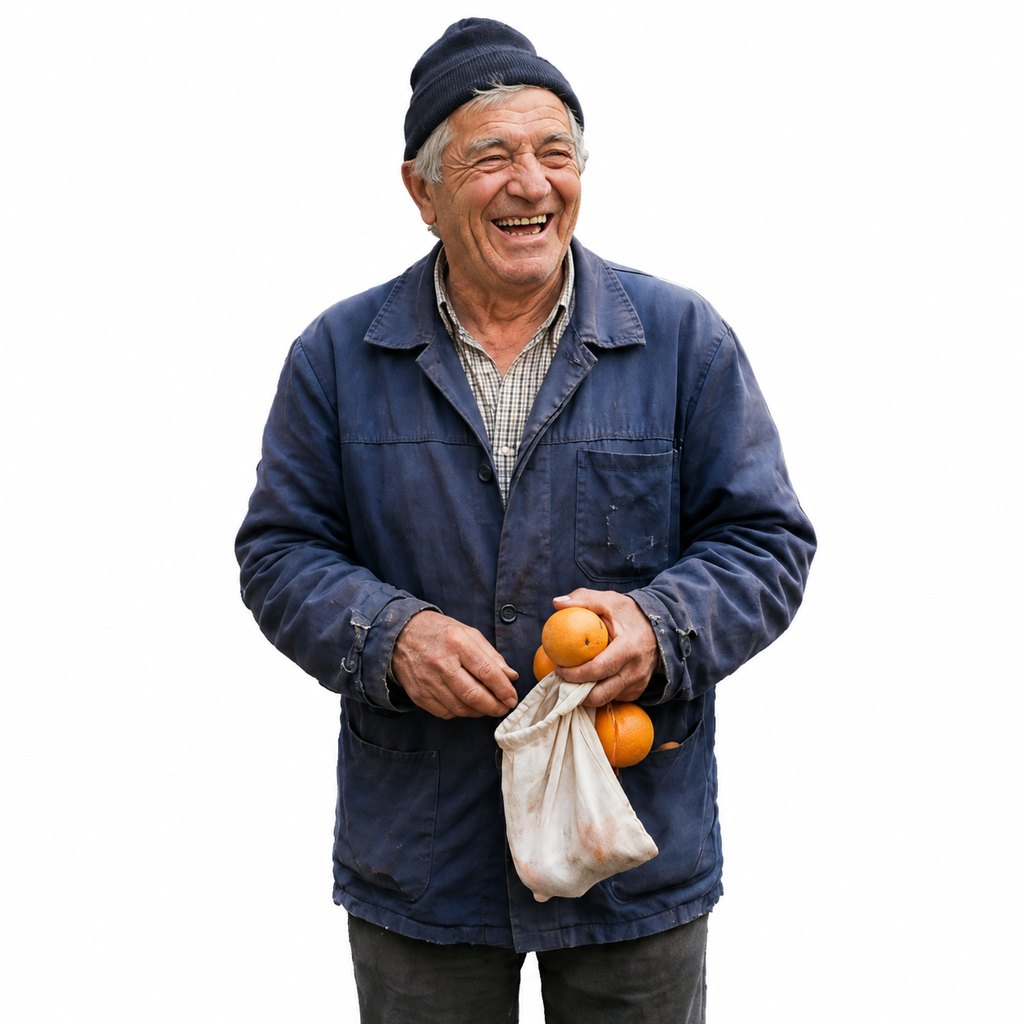
Background remover. More on background removal.
Shadow remover scenes
How the tools work
Every tool combines three things: a preset written instruction, an image model chosen for the job and a rule block that tells the model to keep faces, text, framing and every unmarked detail. The model follows these instructions as well as it can, but it is a generative model and can still change details. When you paint an area with the brush, the model sees a mask and Pixmint composites its answer back onto your original through a feathered edge, so pixels outside the brush come from your original (the edge is blended).
When no brush is used (for example in the background remover), the model returns a re-rendered version of the whole image. That handles things like hair and soft edges well, but small details can shift, so always compare with your original before you publish.
Signed-in users get the preset's stronger model: GPT Image 2.5 for most tools and Nano Banana 2 for document shadows. Guests run the tools on the free Seedream 5.0 Flash model, except document shadow removal, which uses Nano Banana 2 for everyone.
Tools or the editor?
- Use a one-click tool when your goal is one of the common fixes: remove a shadow, remove an object, remove a background.
- Use the AI image editor when you want something else: change the color of a jacket, swap a background for a specific scene, add an object.
- Use the AI image generator when you want a new picture rather than a fix to an existing one, with or without reference images.
Before you upload: a quick checklist
- Do you have the right to use the photo? Only upload photos you took or may use. See the content policy.
- Is it the original file? Screenshots and heavily compressed copies carry less detail, and the tools cannot add back what is missing.
- Is the subject sharp and reasonably lit? Blur and noise carry through to the result.
- Do you know which tool fits? A shadow on a face is a job for the portrait scene, a stranger in the background is a job for the object remover, and a new scene behind a product is a job for the editor.
- Will you compare the result with your original? Always do. Generative tools can shift small details such as fine text, jewelry chains or skin texture.
Photos are scaled to a 2048 px long side in your browser before upload, and results from free credits are up to 1024 px with a small watermark. Uploaded and generated images are stored for 24 hours for guests and 7 days for free accounts (30 days is planned for paid accounts), and can be deleted earlier from History.
Photo tools pricing
Each tool run costs 15 credits ($0.15) whichever model the preset uses. Failed runs are refunded. The AI image editor costs the credits of the model you pick (5 to 36 credits per edit).
Guests get 3 tool runs and 5 free-model images per day. Signed in, you get 50 credits on first sign-in and 20 daily credits. Free results are up to 1024 px with a small watermark and are for personal non-commercial use. Planned paid plans (not available yet): 500 credits for $4.90, 1,100 credits for $9.90, 2,400 credits for $19.90, or a monthly plan of 1,200 credits for $9.90. Paid plans are planned but not available yet, so nothing can be bought today (see pricing).
Photo tools FAQ
What photo tools does Pixmint have?
A shadow remover with product, document and portrait scenes, an object remover, a background remover that gives a white background, and a free-form AI image editor.
Do the tools change faces or text?
The model is instructed to keep faces, skin texture, text and logos, and with a brush the pixels outside the brush come from your original (the edge is blended). Without a brush the whole image is re-rendered. Generative models can still introduce small changes, so compare every result with your original.
Do I need an account?
No. Guests can use the tools 3 times a day with the free model.
Can the background remover make a transparent PNG?
No. It replaces the background with flat white. Transparent PNG output is not offered yet.
Where do the tools run?
In your web browser, on desktop or phone. There is nothing to install.
Start with a tool
Open the shadow remover, or pick another tool above.
Open the shadow remover