 Pixmint
Object Remover
Paint over an object or person you want to remove. The AI fills the gap with what would naturally be behind it, and pixels outside your brush come from your original photo.
Object remover examples
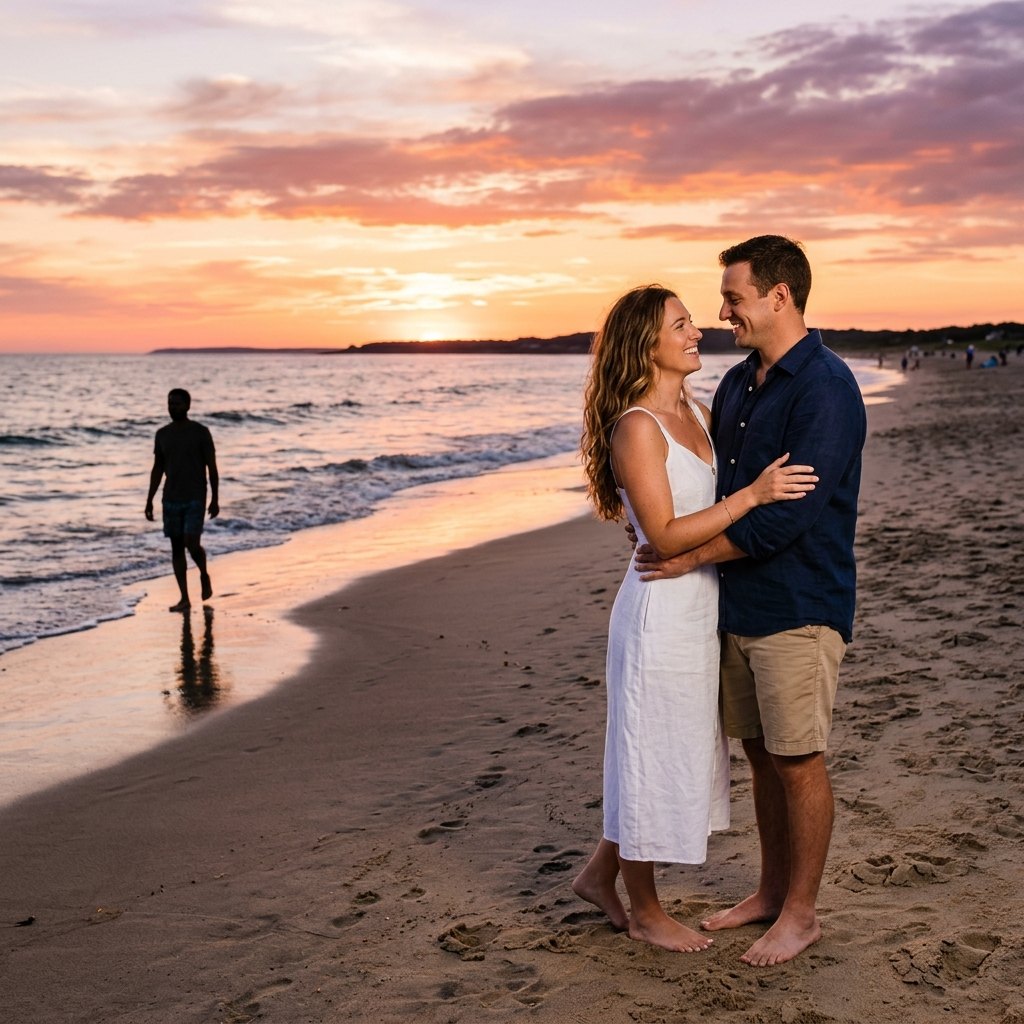
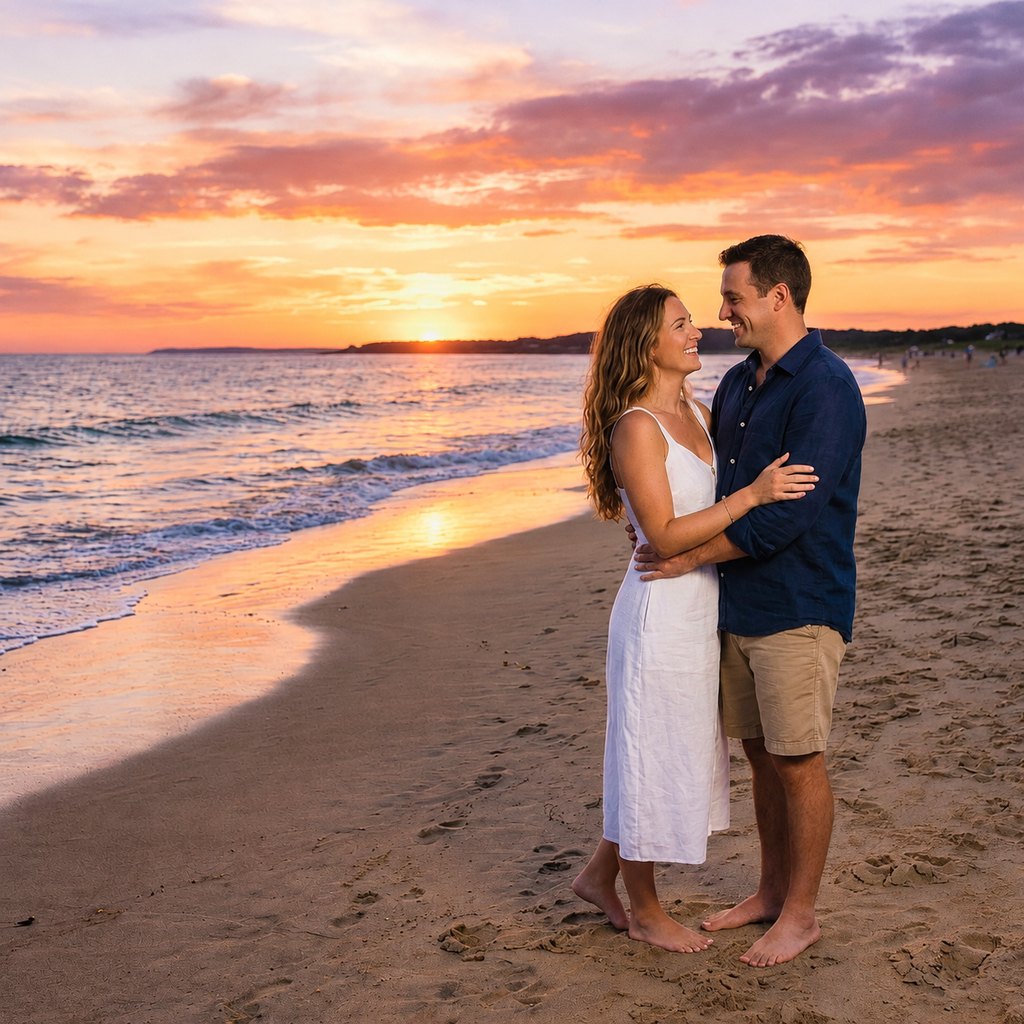
Removing a passer-by. The stranger walking across the shoreline is gone and the wet sand and reflections continue naturally. The couple was not touched. More on this in how to remove people from a photo.
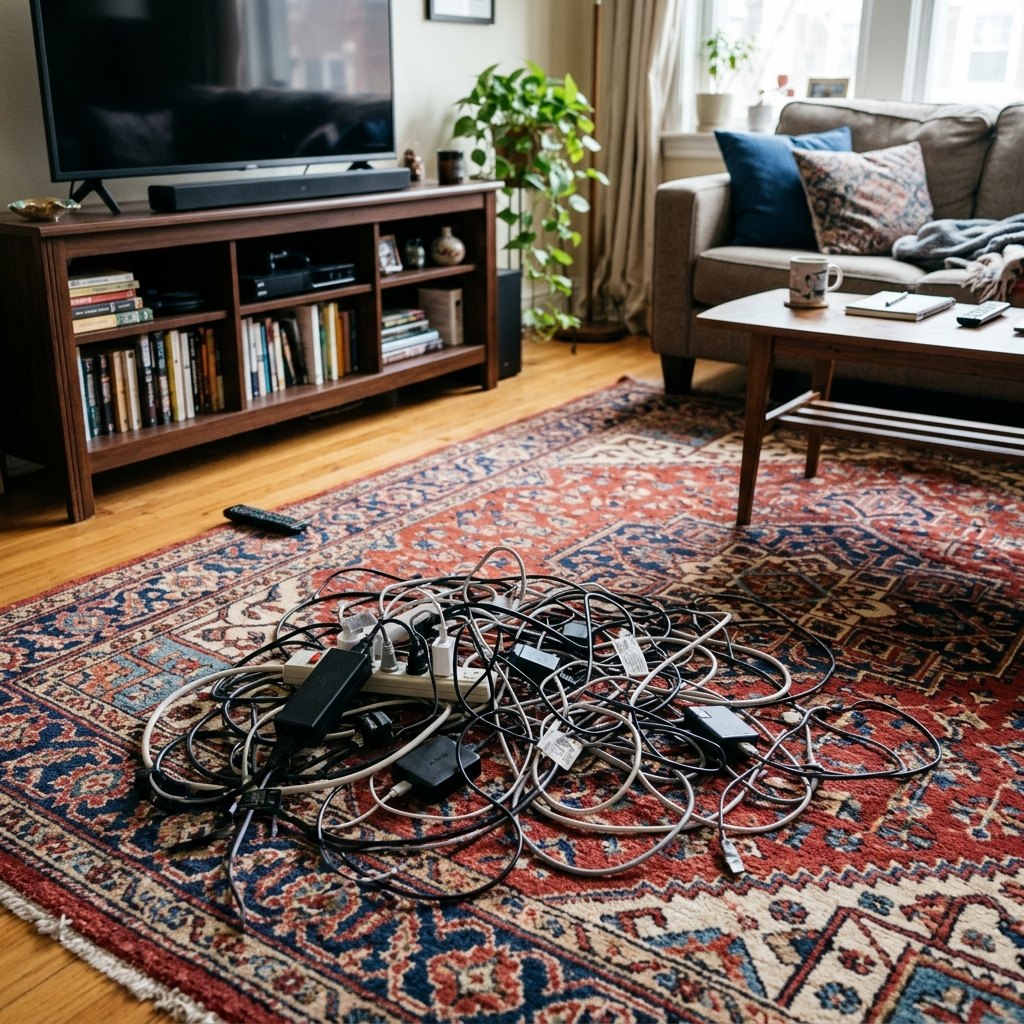
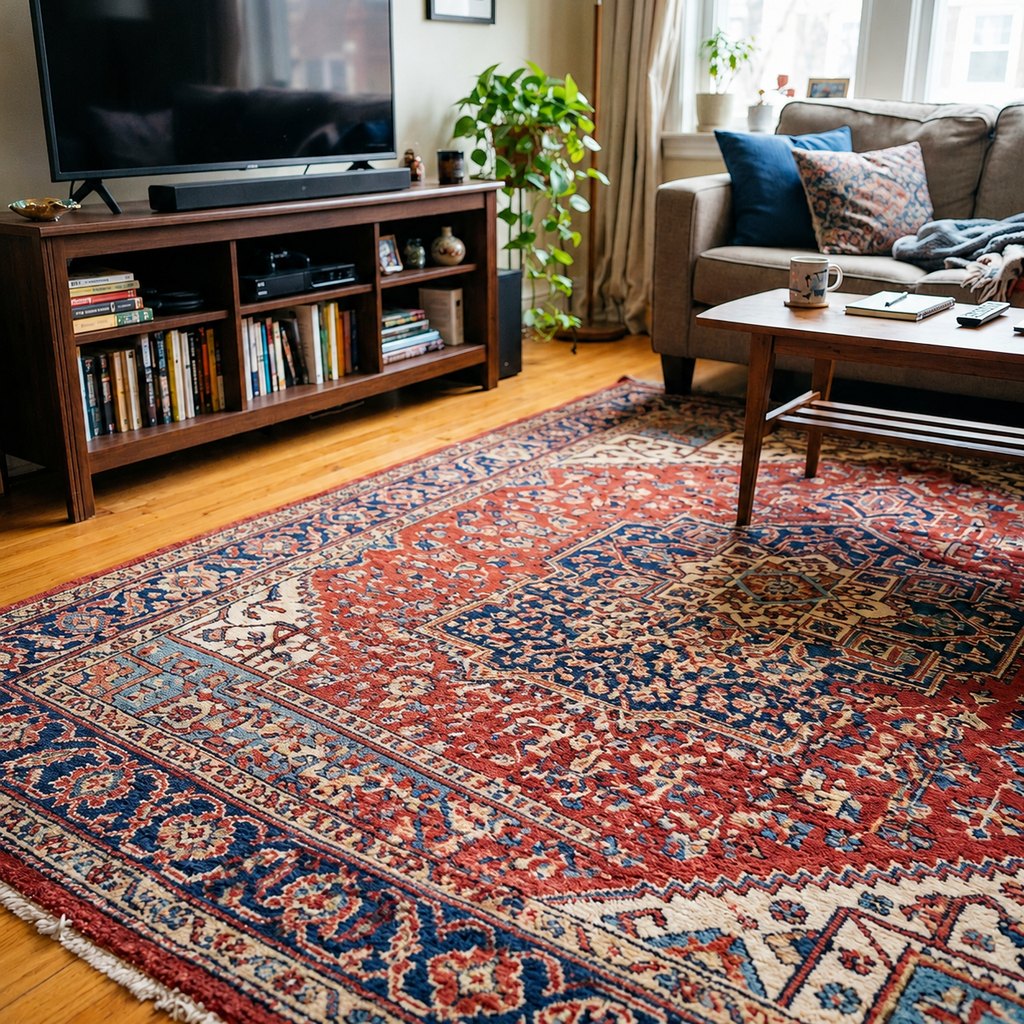
Removing clutter on a busy pattern. Patterns are the hardest background to continue. The result is a convincing rug, but the pattern in the filled area is newly generated and is not the real rug underneath.
How to remove an object from a photo
- Upload the photoDrop a JPG, PNG or WebP (up to 20 MB), paste it, or try the sample photo.
- Paint over what should goUse the brush and paint over the whole object, including its shadow or reflection. Adjust the brush size for thin things like cables and use the eraser to fix mistakes. The Run button stays disabled until something is painted.
- Run, compare and downloadPress Run (15 credits). Check the before/after slider. If something is left over, paint it and run again on the result; each run is one step you can undo.
What happens behind the brush
The editor sends the model your photo and a mask of the painted area, together with this preset instruction:
Remove the objects or people that are painted in red in the second image from the original photo, and fill the area with what would naturally be behind them, matching the surrounding texture, lighting and perspective so there are no visible seams. Change only the red-marked area.
When the model answers, Pixmint composites the result back onto your original through a feathered version of your mask. Pixels outside the brush are the original pixels, so a face, a sign or a building you did not paint cannot change. That is the difference between an object remover and a generic "edit this photo" prompt.
What the object remover is good at, and where it struggles
Works well: small to medium objects against simple or natural backgrounds such as sand, sky, grass, walls and wooden floors; stray people at the edge of a scene; cables, signs, bins, stickers and wires; things that can be fully covered with a few brush strokes.
Harder: large objects that hide a lot of the scene, objects touching faces or hands, regular patterns and text behind the object, and reflections in glass or water. In these cases the result may look plausible but not identical to reality, so paint the shadow and reflection too, remove the object in two or three smaller steps, and zoom in to check the seams.
Because the tool fills gaps by generating new pixels, it cannot reveal what was really there. Do not use it to alter evidence, to remove a person from a scene to mislead others, or to erase a copyright notice or watermark; see the content policy.
Common uses
Travel photos
Remove tourists, signs or scaffolding from a landmark shot.
Real estate and interiors
Erase cables, bins and clutter before listing a room.
Product photos
Remove dust, tags, props or reflections that slipped into the frame.
Family and event photos
Take a stranger out of the background of a portrait.
Social media
Clean up a shot with a distracting object at the edge.
Design mockups
Remove placeholder elements before adding your own. See also the AI image editor.
Brush tips
- Paint a little beyond the edge of the object so no outline is left behind.
- Include the object's cast shadow and any reflection.
- For something thin, such as a wire, zoom the browser in or use a small brush.
- If you want a replacement rather than a gap, use the AI image editor and describe what should appear there.
- Finish a big job in several small runs rather than one giant mask.
Object Remover pricing
Object Remover costs 15 credits ($0.15) per run, whichever model the preset uses behind the scenes. A failed run is refunded automatically.
Free ways to use it: guests get 3 tool runs per day without an account; those runs use Seedream 5.0 Flash (except document shadow removal, which uses Nano Banana 2 for everyone), are limited to 1024 px and carry a small watermark. Signed in, your 50 first-sign-in credits cover 3 runs and the 20 daily credits cover one run every day, and your runs use the preset's stronger model.
Planned paid plans (not available yet): 500 credits for $4.90, 1,100 credits for $9.90, 2,400 credits for $19.90, or a monthly plan of 1,200 credits for $9.90. Paid plans are planned but not available yet, so nothing can be bought today (see pricing).
| Credits | List price | |
|---|---|---|
| Object Remover, one run | 15 | $0.15 |
| AI image editor, one edit | 15 (GPT Image 2.5) up to 36 (Nano Banana Pro) | depends on the model |
| Generate an image | 5 to 36 | depends on the model |
Object remover FAQ
What is an object remover?
It is a tool that erases a selected object or person from a photo and fills the gap with matching background. In Pixmint you paint over the object with a brush and an AI model generates the fill.
Does it change the rest of the photo?
Pixels outside your brush come from the original photo through a feathered mask, so only the painted area (and its blended edge) changes.
Can it remove people from a photo?
Yes, paint over the person and their shadow. Results are best against simple backgrounds. See how to remove people from a photo.
Can I remove a watermark with it?
No. Pixmint does not support watermark removal, and erasing a copyright mark from work you do not own is against our terms.
Is it free?
Guests get 3 runs per day with the free model. Signed in, you get 50 credits at first sign-in and 20 daily; a run costs 15 credits.
Why does the filled area look slightly different?
The fill is newly generated to match the surroundings, so patterns, textures and fine detail are plausible rather than exact. Try a smaller mask, run the tool a second time, or zoom in to check the seams.
Remove an object now
Upload a photo, paint over what you want gone and press Run.
Open the object remover