 Pixmint
Remove People from Photos
Paint over the person you want gone. The AI fills the space with what would naturally be behind them, and pixels outside your brush come from your original.
Before and after: a stranger on the beach
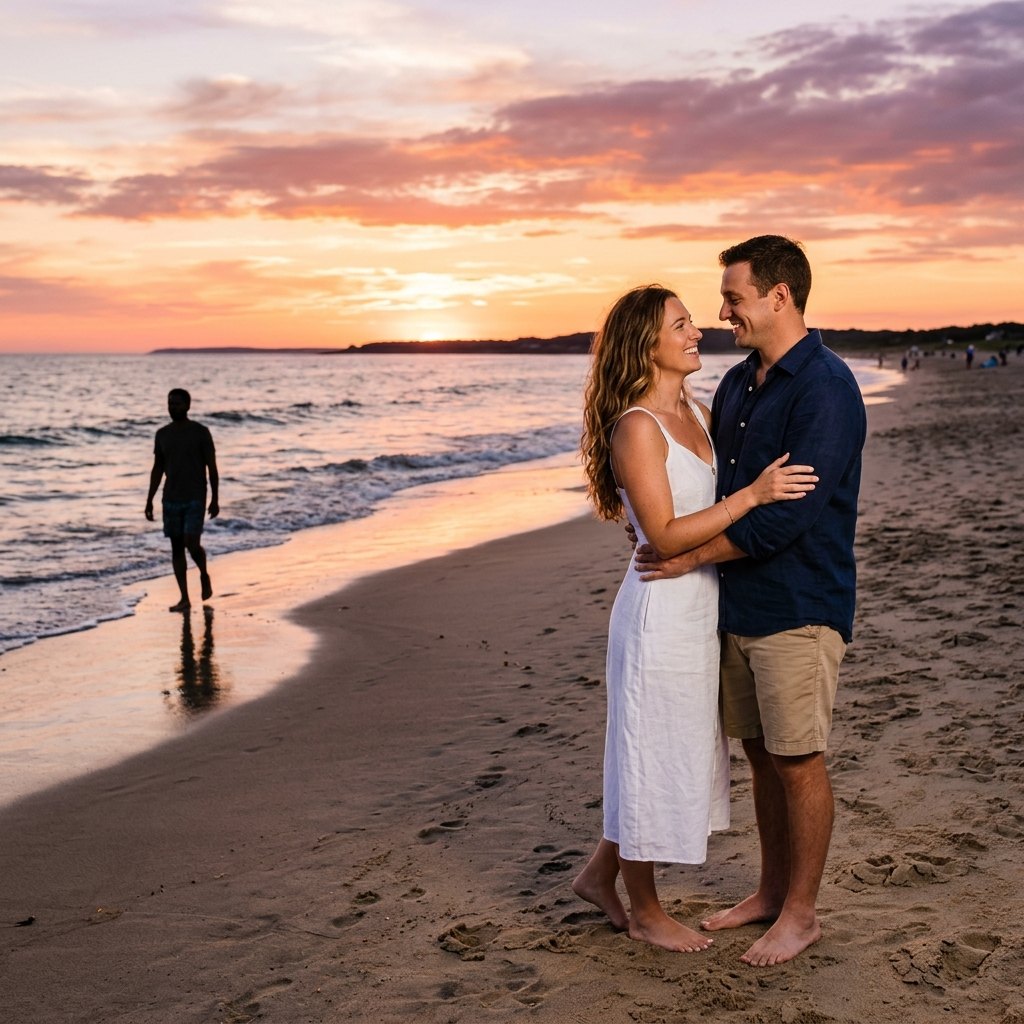
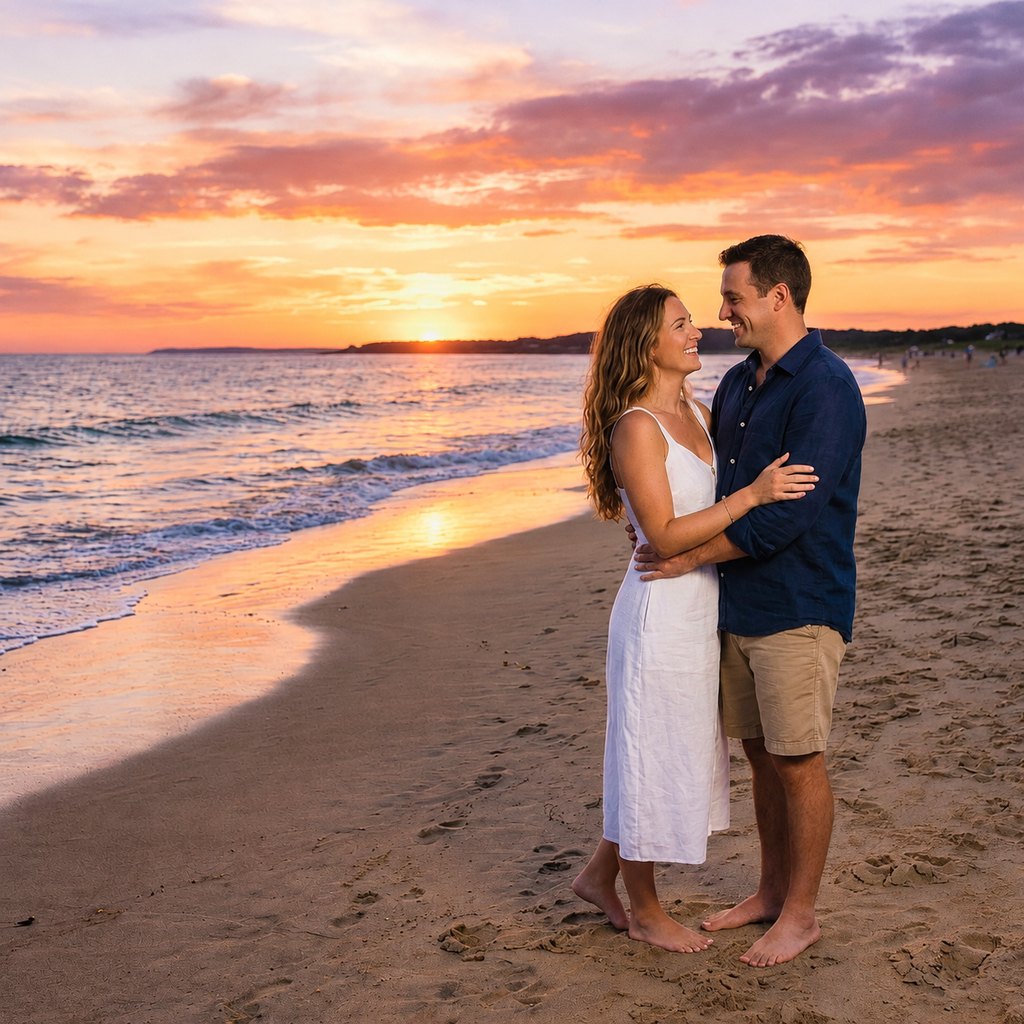
Removing one person. The stranger at the water's edge was painted over with the brush. The sand, waves and reflected light continue behind where they stood, and the couple was not touched.
How to remove a person from a photo
- Upload the photoJPG, PNG or WebP up to 20 MB. Use the original, high-resolution file if you have it. You can try the sample beach photo first.
- Paint over the personCover the whole person, including bags, hair, hands and their shadow on the ground. Use a large brush for the body, a small one near the edge of people you are keeping, and the eraser for slips.
- Run and checkPress Run (15 credits), compare with the slider and zoom in on the filled area. If a trace of the person remains, paint it and run again on the result.
Why it works and when it is hard
The object remover sends your photo, a mask of the painted area and an instruction to fill that area with what would naturally be behind it, matching texture, lighting and perspective. The model generates the missing pixels. Afterwards your original is composited back everywhere outside the feathered edge of your brush, so the people and places you did not paint are untouched.
Removal is easy when the person stands in front of something simple: sand, sky, water, grass, a wall. It is hard when they stand in front of detail that must continue exactly, for example a repeating pattern, a row of windows, text on a sign, or when they overlap the person you want to keep. In those cases try this:
- Remove the person in two or three smaller steps instead of one large mask.
- Paint their shadow and any reflection too, so no ghost remains.
- If part of the person touches your subject, paint carefully along the boundary with a small brush.
- For crowds, remove the most distracting people first and check the result before continuing.
The instruction behind the tool
Remove the objects or people that are painted in red in the second image from the original photo, and fill the area with what would naturally be behind them, matching the surrounding texture, lighting and perspective so there are no visible seams. Change only the red-marked area.
The result is generated, not recovered: the background that appears is plausible, not a copy of what was truly there. That is fine for a tidier holiday photo and unsuitable for anything where accuracy matters.
Common reasons to remove people from a photo
Holiday and landmark photos
Take passers-by out of a shot of a monument, a beach or a street.
Photobombers
Remove the stranger who walked into an otherwise perfect shot.
Real estate and rentals
Remove people from interior and exterior photos of a property.
Family and wedding photos
Clean up the background behind a posed portrait.
Privacy
Take bystanders out of photos you want to share publicly.
Social media
Make a scene look calmer and more focused.
Use it honestly
Removing someone from a photo can change what the picture says. Do not use the tool to mislead others, to alter a photo that serves as evidence, or to take people out of images you do not own. Pixmint does not support removing watermarks or copyright marks, and the terms and content policy apply to every edit. Only upload photos you have the right to use.
Object Remover pricing
Object Remover costs 15 credits ($0.15) per run, whichever model the preset uses behind the scenes. A failed run is refunded automatically.
Free ways to use it: guests get 3 tool runs per day without an account; those runs use Seedream 5.0 Flash (except document shadow removal, which uses Nano Banana 2 for everyone), are limited to 1024 px and carry a small watermark. Signed in, your 50 first-sign-in credits cover 3 runs and the 20 daily credits cover one run every day, and your runs use the preset's stronger model.
Planned paid plans (not available yet): 500 credits for $4.90, 1,100 credits for $9.90, 2,400 credits for $19.90, or a monthly plan of 1,200 credits for $9.90. Paid plans are planned but not available yet, so nothing can be bought today (see pricing).
Guests get 3 tool runs per day without an account (on the free Seedream 5.0 Flash model, except document shadow removal, which uses Nano Banana 2 for everyone; up to 1024 px, small watermark, personal non-commercial use). Signed in, you get 50 credits at first sign-in and 20 every day.
| Credits | List price | |
|---|---|---|
| Object Remover, one run | 15 | $0.15 |
| AI image editor, one edit | 15 (GPT Image 2.5) up to 36 (Nano Banana Pro) | depends on the model |
| Generate an image | 5 to 36 | depends on the model |
More photo tools
Remove people from photos FAQ
How do I remove a person from a photo for free?
Open the object remover, upload your photo, paint over the person and press Run. Guests get 3 free runs per day, with a watermarked result of up to 1024 px.
Will it change the people I keep?
No. Everything outside your brush is taken from your original photo, so people you did not paint are unchanged.
What if the person overlaps someone else?
Paint carefully along the boundary with a small brush and remove the person in several small steps. Check the edge in the result.
Can it remove a person from a crowd?
Yes, one person at a time. Work through the most distracting people first and check the filled areas.
Is the background that appears real?
No. It is generated to match its surroundings, so it looks plausible but is not a recovery of what was hidden.
Can I remove people from any photo?
Only photos you have the right to use, and not to deceive or to alter evidence. See the content policy.
Remove a person now
Upload a photo above, paint over the person and press Run.
Open the object remover