 Pixmint
Remove Shadows from Document Photos
A phone photo of a receipt or form often has your own shadow across it. The document scene evens out the light, and the model is told to keep every character, number and line. Always check the text against your original.
Before and after: a receipt on a cafe table
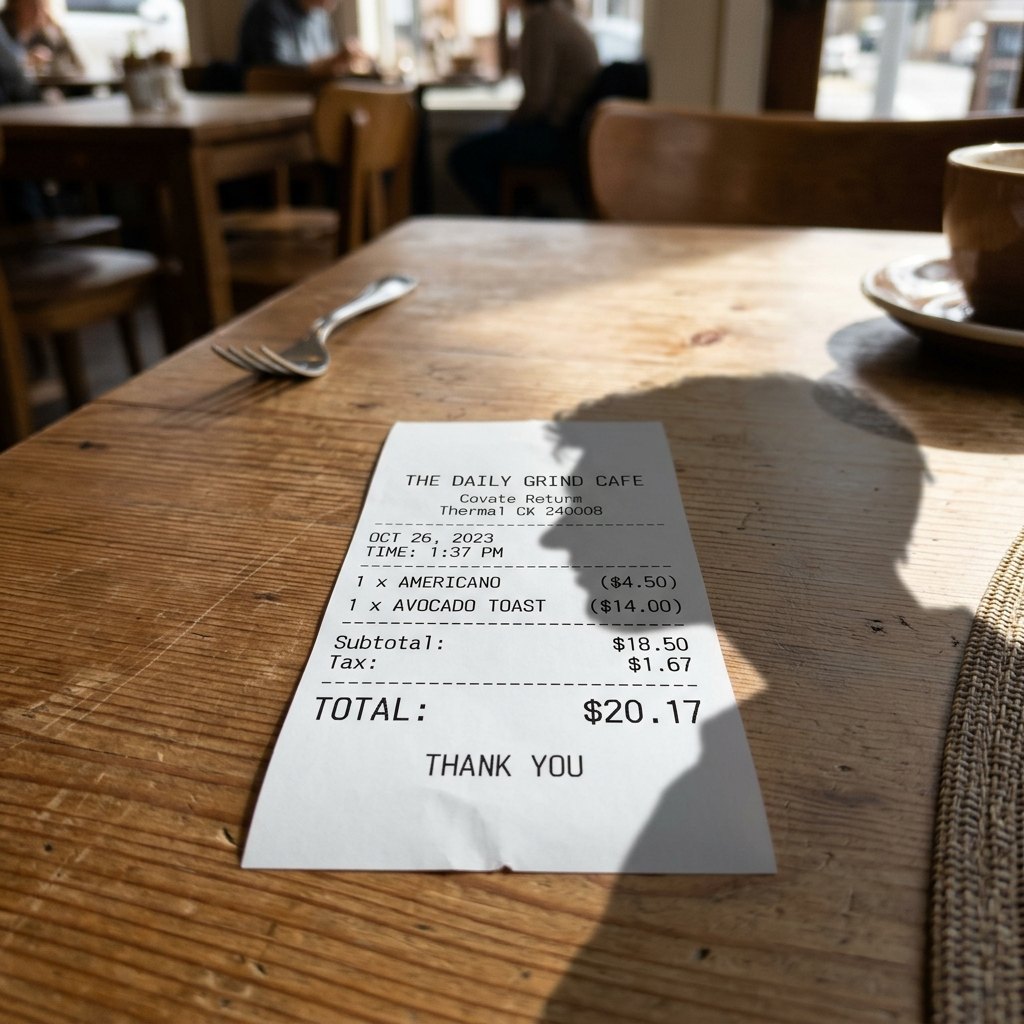
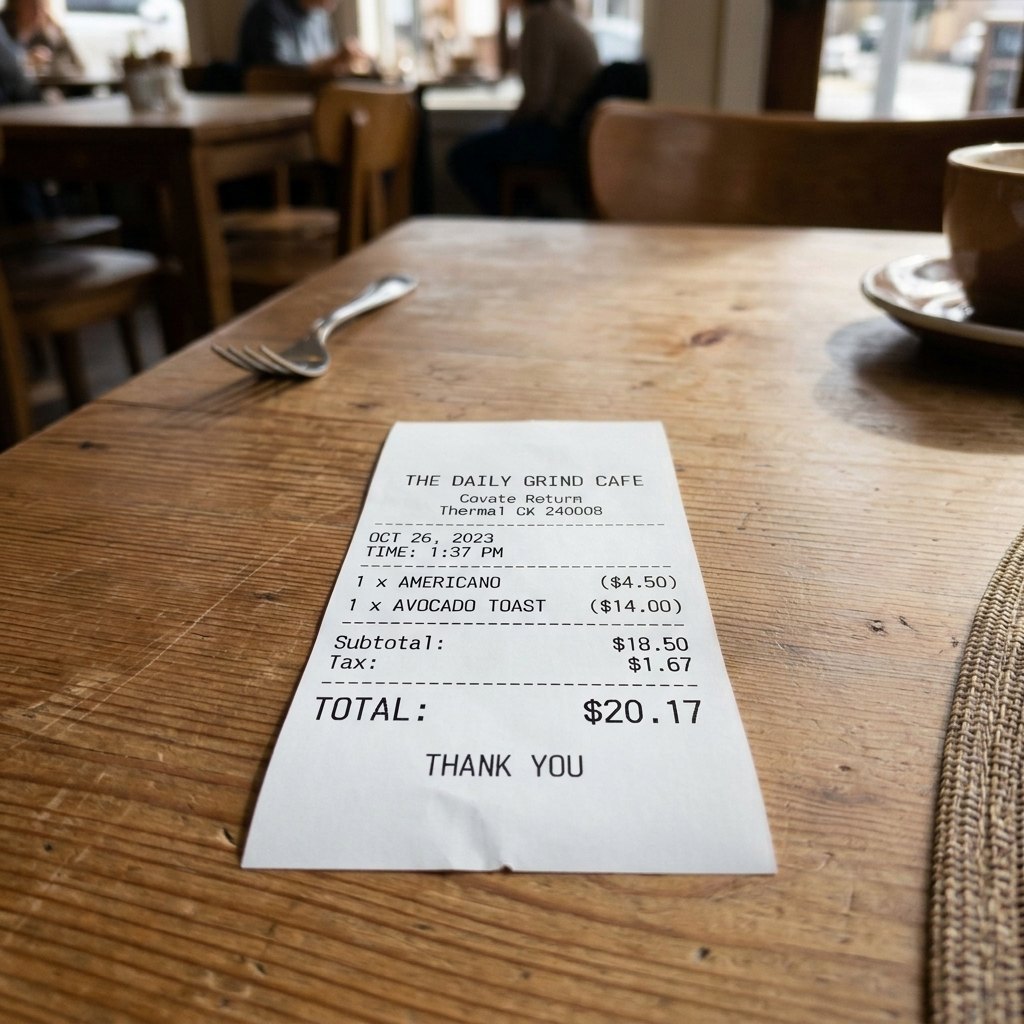
Document scene. The head and shoulder shadow that darkened the right side of the receipt is gone. In this sample the shop name, date, item lines, subtotal, tax and total read the same as before; check your own document the same way.
The problem with photographing paper
Most people photograph paper with a phone, standing over it. Your head, shoulders and phone block the light, and the shadow lands exactly on the text. The result is a receipt for an expense report or a form for an application where half the page is dark and hard to read or scan.
A normal brightness filter cannot fix that, because it lifts the whole picture and leaves the shadow edge visible. Pixmint's document scene asks an image model to relight the shadowed area so that the paper is evenly lit, with explicit instructions not to touch the content of the page.
How to remove a shadow from a document photo
- Use the Document sceneIt is pre-selected here. This scene is separate from the others because text needs different handling from faces or products.
- Upload the photoA straight-on, in-focus photo works best. JPG, PNG or WebP up to 20 MB; try the sample receipt if you just want to see how it behaves.
- Run and verifyPress Run (15 credits), then compare the result with your original line by line. Download as PNG or JPG once you are satisfied.
How the document scene protects text
The preset instruction is explicit about text:
Remove all cast shadows from this photo of a document and relight the shadowed areas so the paper is evenly lit. Keep every character, number, line, table, stamp and signature exactly the same: do not rewrite, fix, add or remove any text.
The scene is also routed to a different model from the others. In our own tests on photos of documents, Nano Banana 2 kept the printed text faithful, while some other models sometimes invented or altered characters underneath a shadow. So this scene always runs on Nano Banana 2, for guests too, even though it costs us more than the free model. Still check the result against your original before you rely on it.
Always verify the numbers
An image model re-draws the picture; it is not an optical scanner. For anything where a digit matters, treat the result as a cleaner copy for reading, not as the original record:
- Compare totals, dates, reference numbers and signatures with the original photo.
- Keep the original photo as the source of truth.
- If a character looks different, run again or paint over only the shadow with the brush so the rest of the page is taken straight from your original pixels.
- Do not use the tool to change what a document says. Altering or forging documents is against our content policy.
Good uses for the document scene
Receipts and expenses
Rescue a shadowed receipt photo before you attach it to an expense report.
Forms and letters
Make a printed form readable when you only have a phone photo of it.
Notes and handouts
Even out lecture notes or a handout photographed on a desk.
Printed pages and menus
Take a cleaner photo of a printed page for sharing.
Archiving family papers
Improve a quick photo of an old letter or certificate for personal records.
Before OCR
A more evenly lit page can be easier for other software to read, though you should still check the text.
Limits and privacy
This tool changes lighting only. It does not straighten a skewed page, crop, flatten a curled sheet or run text recognition. Very dark shadows that completely hide text cannot be recovered truthfully: the instruction tells the model not to guess hidden content, so some text may stay faint instead of being invented.
Your photo is sent to the provider that runs the scene (for Nano Banana 2, a third-party API relay passes it on to Google) and stored on Pixmint for a limited time: 24 hours for guests and 7 days for free accounts (30 days is planned for paid accounts). We do not use images to train models. Do not upload documents you are not comfortable sending to those providers; read the privacy policy.
Take a better document photo
- Hold the phone directly above the page and step back to zoom in, so your body is not between the light and the paper.
- Use daylight from a window beside you, not an overhead lamp behind you.
- Place the page on a plain, flat surface and keep all four corners in the frame.
- Tap to focus on the text before shooting.
Shadow Remover pricing
Shadow Remover costs 15 credits ($0.15) per run, whichever model the preset uses behind the scenes. A failed run is refunded automatically.
Free ways to use it: guests get 3 tool runs per day without an account; those runs use Seedream 5.0 Flash (except document shadow removal, which uses Nano Banana 2 for everyone), are limited to 1024 px and carry a small watermark. Signed in, your 50 first-sign-in credits cover 3 runs and the 20 daily credits cover one run every day, and your runs use the preset's stronger model.
Planned paid plans (not available yet): 500 credits for $4.90, 1,100 credits for $9.90, 2,400 credits for $19.90, or a monthly plan of 1,200 credits for $9.90. Paid plans are planned but not available yet, so nothing can be bought today (see pricing).
Guests get 3 tool runs per day without an account (on the free Seedream 5.0 Flash model, except document shadow removal, which uses Nano Banana 2 for everyone; up to 1024 px, small watermark, personal non-commercial use). Signed in, you get 50 credits at first sign-in and 20 every day.
| Credits | List price | |
|---|---|---|
| Shadow Remover, one run | 15 | $0.15 |
| AI image editor, one edit | 15 (GPT Image 2.5) up to 36 (Nano Banana Pro) | depends on the model |
| Generate an image | 5 to 36 | depends on the model |
More photo tools
Document shadow FAQ
How do I remove a shadow from a photo of a document?
Upload it to the shadow remover with the Document scene selected and press Run. The AI evens out the lighting and is instructed to keep every character, number and line unchanged.
Can it change the text in my document?
It is told not to, and this scene always runs on a model chosen to keep text faithful, for guests too. Because it is a generative model you should still compare the result with your original, especially numbers.
Does it work as a scanner?
No. It only changes lighting. It does not crop, straighten or run OCR.
Can I upload ID cards or bank statements?
We recommend not uploading sensitive documents. Images are sent to a third-party model provider to be processed; see the privacy policy.
Is it free?
You can try it free: guests get 3 runs per day. A run costs 15 credits otherwise. Free results are up to 1024 px with a small watermark.
What if the result still has a faint shadow?
Paint over the remaining shadow with the brush and run again. Only the painted area will change.
Fix a document photo now
Upload your photo above with the Document scene selected, or try the sample receipt.
Open the tool