 Pixmint
Remove Shadows from Product Photos
Window blinds, desk lamps and your own hands leave shadows on product shots. This tool removes them, and the model is instructed to keep the product, its labels and its logos. Compare the result with your original before you publish.
Before and after: a white sneaker
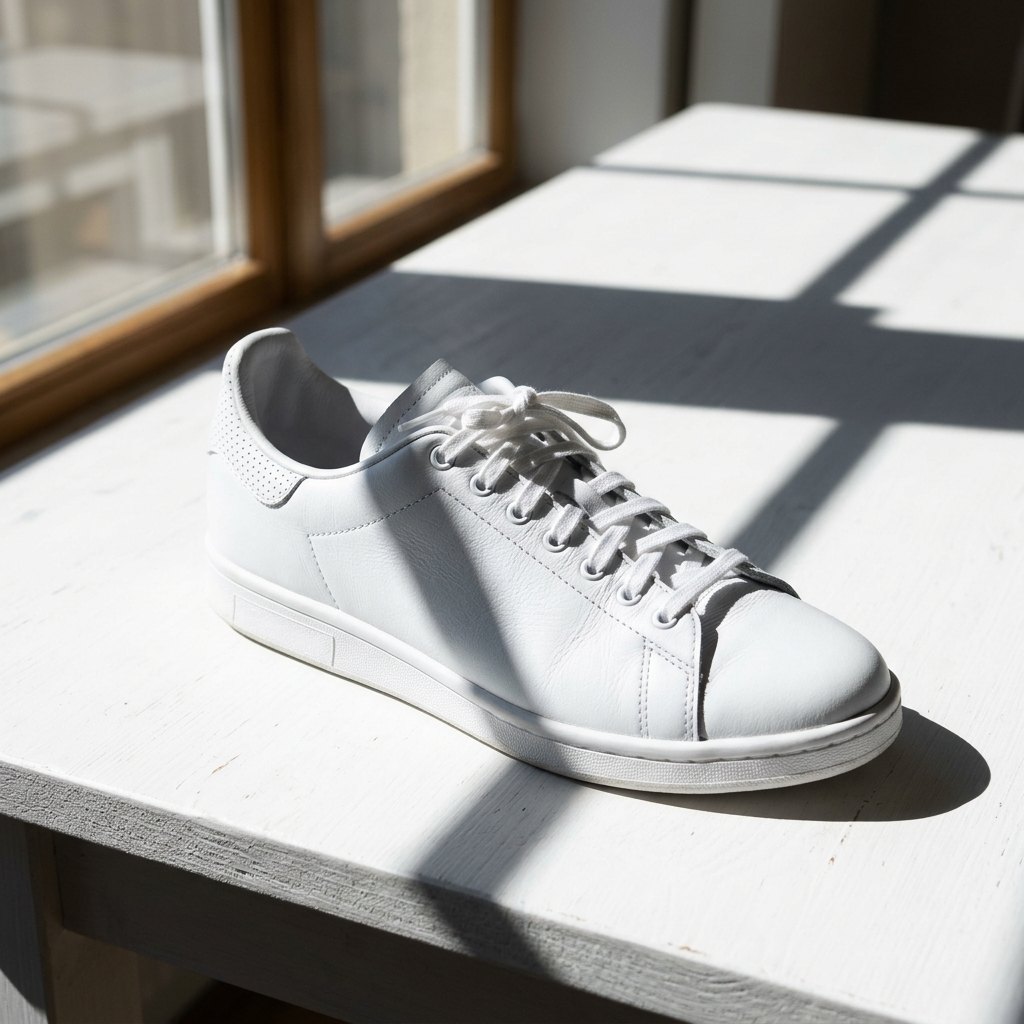
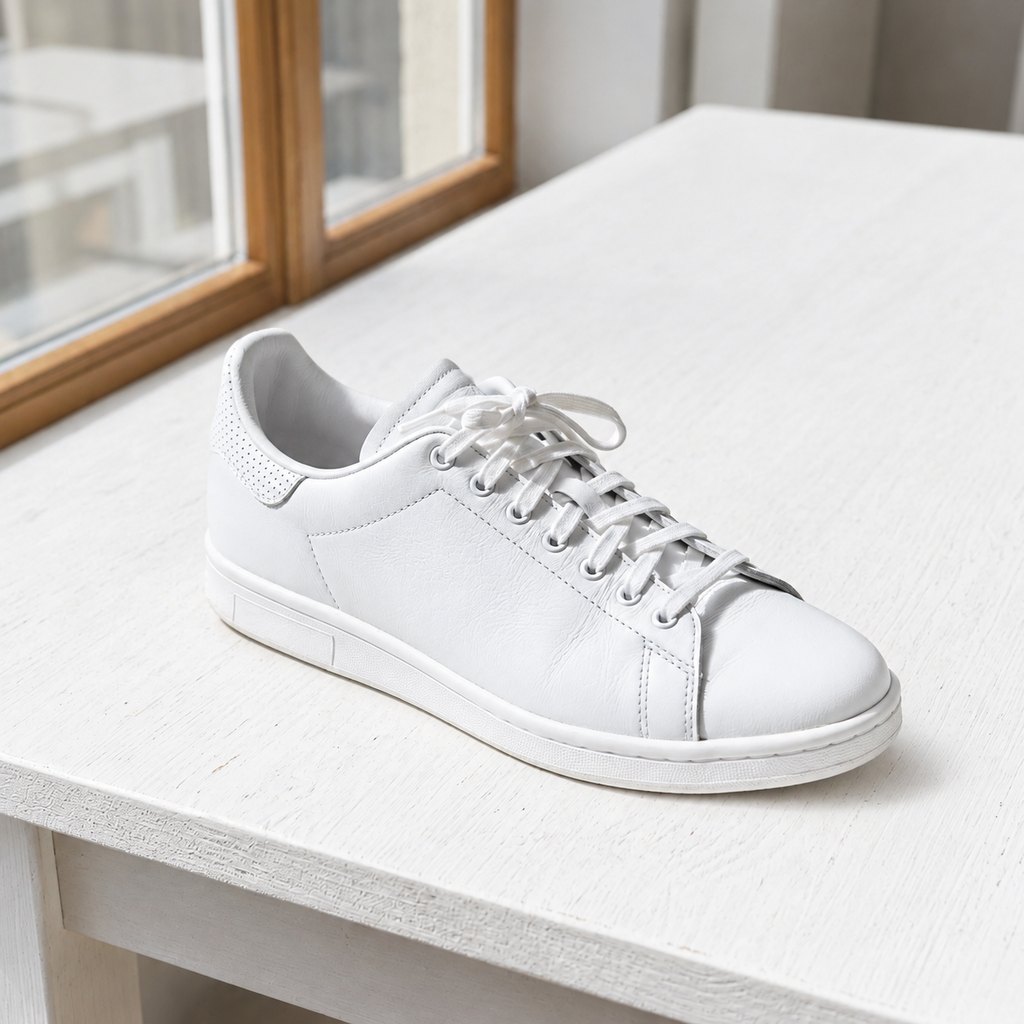
Product scene. Hard striped shadows from a window fall across the shoe and the table. After the run the lighting is clean and even, and the lacing, sole texture and white material look the same.
Why shadows hurt product photos
A product photo has one job: show the product clearly and consistently. Harsh shadows work against both. They hide edges and texture, they make a white or light-colored item look dirty or uneven, and they make a catalog look inconsistent when half the photos were taken near a window and half under a lamp.
Fixing that normally means a reshoot with a light tent or a lot of manual retouching. For sellers with dozens or hundreds of items, or photos that were taken by suppliers and cannot be retaken, a one-step shadow remover is a practical shortcut.
How to remove shadows from a product photo
- Select the Product sceneIt is pre-selected on this page. The product scene tells the model to relight around and under the product while keeping its shape, material, color, labels and logos.
- Upload the photoUse the original file rather than a screenshot. JPG, PNG or WebP up to 20 MB. You can also try the sample sneaker photo first.
- Run it and check the detailsPress Run (15 credits). Compare with the before/after slider, paying attention to logos, stitching, edges and color. Download as PNG or JPG.
What the product scene tells the model
This is the preset instruction for the product scene. It is worth reading because it shows what the tool will and will not do:
This is a product photo. Remove the cast shadows and harsh shadows around and under the product so the lighting looks clean and even, while keeping the product's shape, material, color, labels and logos exactly the same. Keep a natural soft contact shadow only if needed for realism.
Two parts matter most. First, the model is told to keep the product's identity: shape, material, color, labels and logos. Second, it may keep a natural soft contact shadow where the product touches the surface, because a product with no shadow at all can look like it is floating. Every run also adds a rule block that forbids inventing new objects or text and keeps the framing unchanged.
Get cleaner product shots in the first place
Better light means fewer corrections. A few cheap habits help a lot:
- Diffuse the light. Shoot beside a window with a sheer curtain, or bounce a lamp off a white wall instead of aiming it at the product.
- Add a white card opposite the light to fill the shadow side.
- Lift the product away from the backdrop a little, or use a sweep, so the shadow falls softly rather than as a hard edge.
- Keep your body out of the light path. A phone, a hand or a head can cast the shadow you later have to remove.
- Shoot at the highest quality your camera offers and keep the original file; the tool works best with sharp, uncompressed source images.
What to check before you publish
- Logos and printed text on the product still match the original, letter for letter.
- Color has not shifted. Relighting can shift white balance slightly, which matters for items sold by color.
- Edges and shape are unchanged. Compare silhouettes, especially thin parts such as straps, handles and cables.
- Glass, chrome and glossy surfaces. Reflections are not shadows, and the model may treat them differently from what you expect.
- The contact shadow still grounds the product. If you want none, you can follow up with the background remover for a flat white backdrop.
Without a brush the model returns a re-rendered version of the whole picture. When you need to be certain that part of the photo is untouched, paint over only the shadow you want gone and the rest is taken from your original pixels.
Which model runs this scene?
Signed-in users run the product scene on GPT Image 2.5, the all-round editing model on Pixmint. Guests use Seedream 5.0 Flash, which is free but can be less exact on difficult photos. If a guest result is not good enough, sign in and run the same photo again.
Shadow Remover pricing
Shadow Remover costs 15 credits ($0.15) per run, whichever model the preset uses behind the scenes. A failed run is refunded automatically.
Free ways to use it: guests get 3 tool runs per day without an account; those runs use Seedream 5.0 Flash (except document shadow removal, which uses Nano Banana 2 for everyone), are limited to 1024 px and carry a small watermark. Signed in, your 50 first-sign-in credits cover 3 runs and the 20 daily credits cover one run every day, and your runs use the preset's stronger model.
Planned paid plans (not available yet): 500 credits for $4.90, 1,100 credits for $9.90, 2,400 credits for $19.90, or a monthly plan of 1,200 credits for $9.90. Paid plans are planned but not available yet, so nothing can be bought today (see pricing).
Guests get 3 tool runs per day without an account (on the free Seedream 5.0 Flash model, except document shadow removal, which uses Nano Banana 2 for everyone; up to 1024 px, small watermark, personal non-commercial use). Signed in, you get 50 credits at first sign-in and 20 every day.
| Credits | List price | |
|---|---|---|
| Shadow Remover, one run | 15 | $0.15 |
| AI image editor, one edit | 15 (GPT Image 2.5) up to 36 (Nano Banana Pro) | depends on the model |
| Generate an image | 5 to 36 | depends on the model |
More photo tools
Product photo shadow FAQ
How do I remove shadows from product photos?
Upload the photo to the shadow remover with the Product scene selected and press Run. The AI relights the image so cast shadows around and under the product disappear. The instruction is to keep the product itself unchanged, but the model redraws the image, so check shape, labels and logos against your original.
Will it change my logo or label?
The instruction tells the model to keep labels and logos, but it is a generative model and can still change them, so always compare the result with your original before publishing.
Can it keep a natural shadow under the product?
Yes. The product scene allows a soft contact shadow only where it is needed for realism, so the product does not look like it is floating.
Can I remove only part of the shadow?
Yes. Paint over the shadow with the brush and only that area is changed.
Is it free for e-commerce use?
You can try it free, but free results are up to 1024 px with a small watermark and for personal non-commercial use, so they are not for listings or ads today. Paid plans are planned to produce images without the watermark; they are not available yet. Commercial use is planned to come with paid plans, which are not available yet, so today free outputs are for personal, non-commercial use only.
Does it also remove the background?
Not in this tool. Use the background remover for a clean white backdrop.
Fix a product photo now
Upload your product photo above with the Product scene selected.
Open the tool