 Pixmint
Remove Shadows from Face Photos
A hat brim, a raised hand or harsh midday sun can put a shadow across a face. The portrait scene evens out the light, and the model is told to keep the same person, skin texture and expression. Check the face at full size.
Before and after: a street selfie
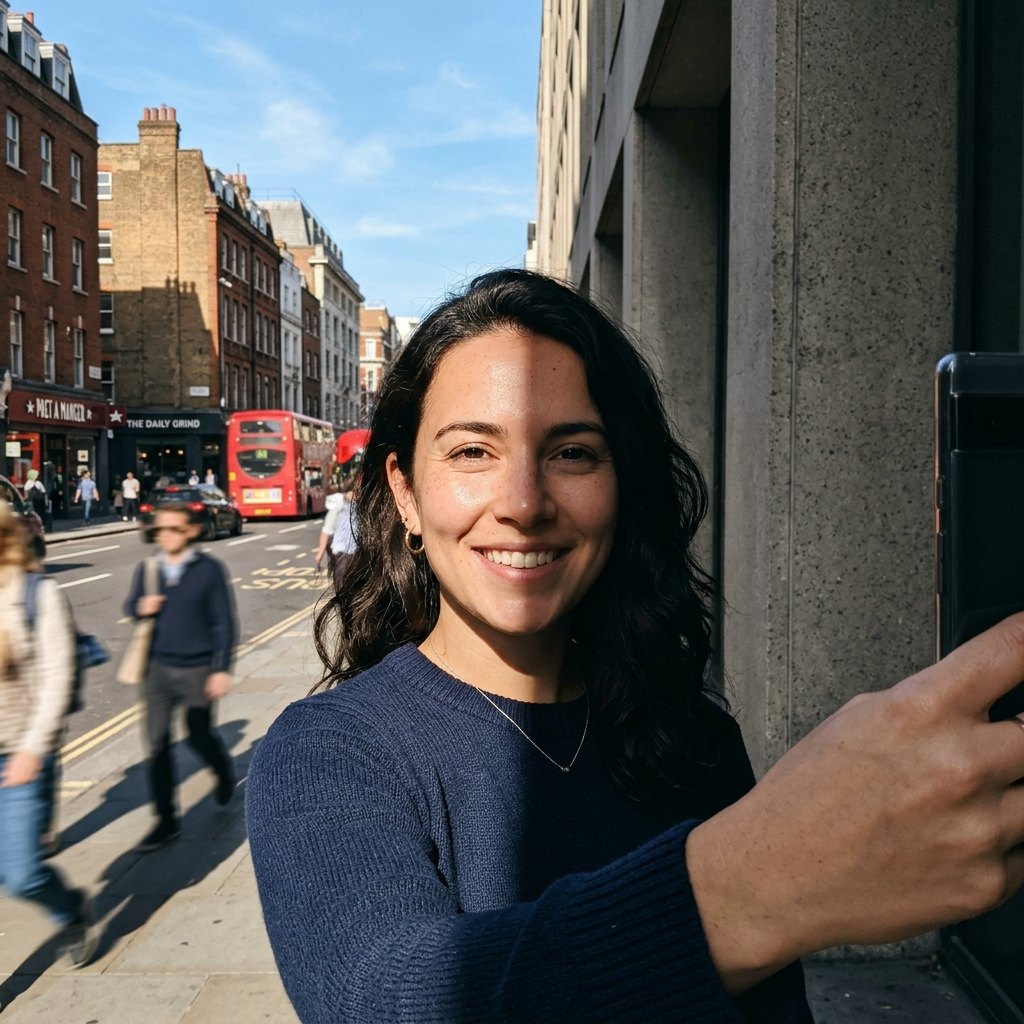
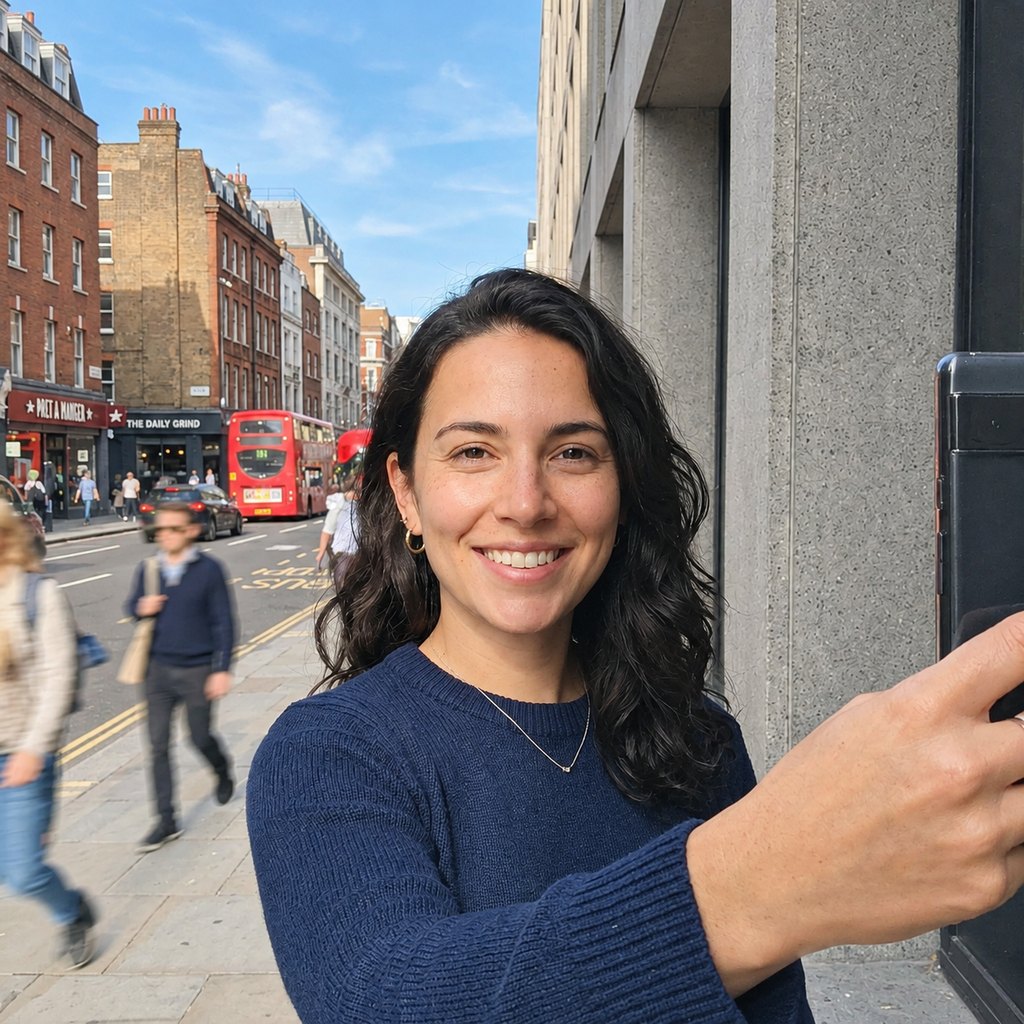
Portrait scene. A shadow across the side of the face is evened out. In this sample her expression, features and the street behind her look unchanged. The tool is not a beauty filter: it does not smooth skin or reshape anything.
Why shadows on faces matter
Faces are where people look first, and shadows on them are unforgiving. A cap brim cuts the eyes off in darkness, a hand holding the phone throws a shadow over the cheek, and midday sun carves deep shadows under the brow and nose. These are exactly the photos people do not post or use for a profile, even when the expression was perfect.
The portrait scene targets that situation. It evens out the light on the face, neck and skin, and it does so under a firm constraint: it must remain the same person.
How to remove shadows from a face
- Select the Portrait sceneIt is pre-selected here. This scene uses an instruction written to protect identity and skin texture.
- Upload the photo (and paint if you like)JPG, PNG or WebP up to 20 MB. If only one cheek or the eye area is shadowed, paint over that area with the brush so the rest of the photo is taken straight from your original.
- Run and reviewPress Run (15 credits). Use the before/after slider, zoom in on the eyes, teeth and skin, and download a PNG or JPG.
What the portrait scene tells the model
The preset instruction is:
This is a portrait photo. Remove the unwanted shadows on the face, neck and skin (for example hard shadows from a hat, hand, or harsh light) and even out the lighting naturally. It must remain the exact same person: same face shape, features, skin texture and expression. No beautifying, no smoothing, no makeup.
On top of that, every run carries rules telling the model to keep each person's face, identity, skin texture, expression, hairstyle and body, to avoid beautifying, retouching or smoothing anyone, and to keep the framing and composition. Signed-in users run this scene on GPT Image 2.5; guests use the free Seedream 5.0 Flash model.
What to check in the result
- Eyes and eyebrows: shape, color and catchlights should match the original.
- Skin texture: freckles, pores and lines should not be smoothed away.
- Teeth and lips: the smile should be the same smile.
- Edges: hair and jawline should not look reshaped.
- Overall brightness: the face should match the lighting of the rest of the scene rather than looking pasted in.
Generative models can drift on small facial details. If you see a difference, undo and run again, or use the brush to limit the change to the shadowed patch.
Good uses and clear limits
Profile pictures
Rescue a good expression spoiled by a shadow, then use it as an avatar for a social or work profile.
Selfies in strong sun
Soften the harsh shadows from midday light.
Hat and cap shadows
Open up the eyes when the brim darkens the upper face.
Event and travel photos
Fix the one shot where everyone looks great but one person is half in shadow.
Not for official ID photos
Passport and ID photos have strict rules about editing. Do not use this tool for them.
Not for beauty retouching
It does not smooth skin or change features. Use another tool if that is what you want.
Use it responsibly
Only upload photos of yourself or of people who are happy for you to edit their picture. Do not use the tool to impersonate, mislead or harm anyone. Edits of real people without their consent, sexual content, and any content involving minors are not allowed on Pixmint. The full rules are in the content policy.
Shadow Remover pricing
Shadow Remover costs 15 credits ($0.15) per run, whichever model the preset uses behind the scenes. A failed run is refunded automatically.
Free ways to use it: guests get 3 tool runs per day without an account; those runs use Seedream 5.0 Flash (except document shadow removal, which uses Nano Banana 2 for everyone), are limited to 1024 px and carry a small watermark. Signed in, your 50 first-sign-in credits cover 3 runs and the 20 daily credits cover one run every day, and your runs use the preset's stronger model.
Planned paid plans (not available yet): 500 credits for $4.90, 1,100 credits for $9.90, 2,400 credits for $19.90, or a monthly plan of 1,200 credits for $9.90. Paid plans are planned but not available yet, so nothing can be bought today (see pricing).
Guests get 3 tool runs per day without an account (on the free Seedream 5.0 Flash model, except document shadow removal, which uses Nano Banana 2 for everyone; up to 1024 px, small watermark, personal non-commercial use). Signed in, you get 50 credits at first sign-in and 20 every day.
| Credits | List price | |
|---|---|---|
| Shadow Remover, one run | 15 | $0.15 |
| AI image editor, one edit | 15 (GPT Image 2.5) up to 36 (Nano Banana Pro) | depends on the model |
| Generate an image | 5 to 36 | depends on the model |
More photo tools
Face shadow FAQ
How do I remove a shadow from someone's face in a photo?
Open the shadow remover with the Portrait scene selected, upload the photo and press Run. You can paint over just the shadowed area to leave the rest of the photo untouched.
Will it change how I look?
The model is instructed to keep your face shape, features, skin texture and expression and not to beautify, but it can still change details. Check the result at full size to be sure.
Does it work for hat shadows and hand shadows?
Yes, those are exactly the cases the portrait scene describes, along with harsh light.
Can I use it on someone else's photo?
Only if you have the right to use the photo and the person is fine with the edit. Edits that deceive or harm people are prohibited.
Is it free?
You can try it free: guests get 3 tool runs per day. Signed in you get 50 credits then 20 per day; a run costs 15 credits.
Can it remove a shadow from a photo of an object instead?
Yes, use the product scene for objects and the document scene for paper.
Fix a portrait now
Upload a portrait above with the Portrait scene selected, or try the sample selfie.
Open the tool